
Appearance
Create
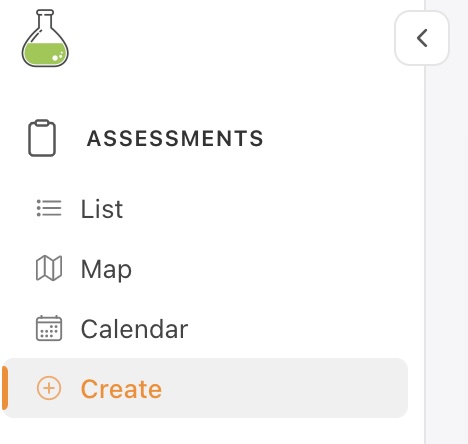
In the Navigation panel on the left-hand side of the screen, under the Assessments menu the Create feature allows the user to enter a new assessment.
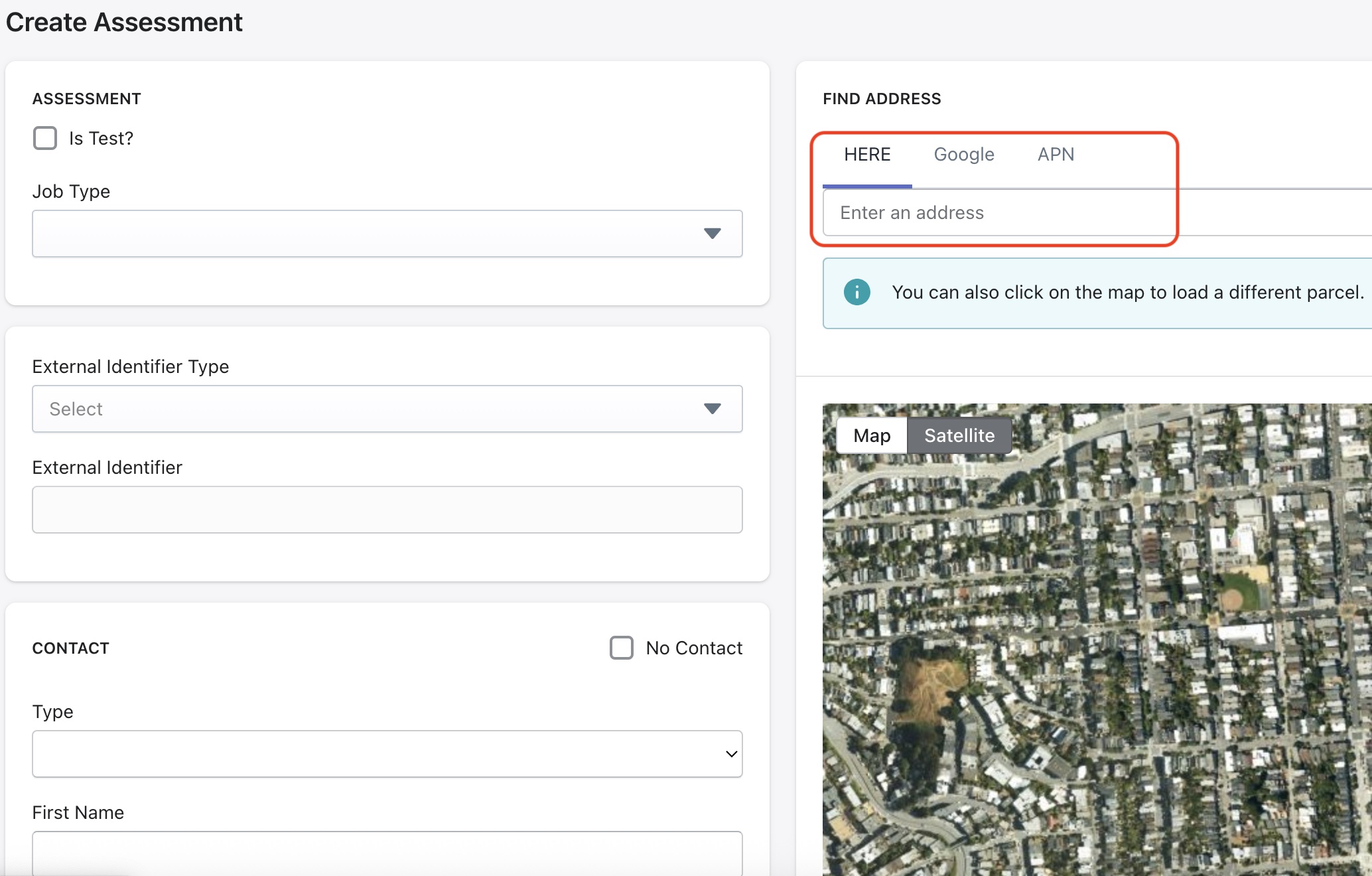
For new users, the Is Test? checkbox can be used to create a test assessment.
On the left-hand side panel, the user has some options to enter details about this assessment. Job type, External identifier info and contact info can be entered here. Please click on the options above to learn more.
Please Note
External Identifiers may or may not be setup for your organization, entering this info is optional. Please contact the Wuuii team for more assistance with this feature.
Contact
In the Contact section, the user can specify a contact for this property. Entering contact info at this stage can be skipped by checking the No Contact checkbox.
Additional users can be added to this property in this section to ensure service providers receive copies of reports and email notifications, if configured.
Contact the Wuuii team for help with integrating with a CRM system of your choice.
Find Address
On the right-hand side, the user is able to utilize map features to find a property using inputs such as
- Street address (SITUS)
- Latitude, Longitude
- Google Maps location
- Assessor Parcel Number (APN)
- Pan and click the map to navigate to a location
Once the info is filled out, click Create Assessment which creates a new assessment in the system and the system begins to generate landcraft data for the property.
Assessment Created
The user will be taken to the newly created assessment to the Parcel tab shown below. Once the data packages have been generated, the new assessment is updated to "Ready" status and can be assigned to an assessor.
Important
Until an assessment is moved forward to "Scheduled" status it will not be available in the Collect App for field staff.
For more info on the different tabs in this view, refer to Assessment page.
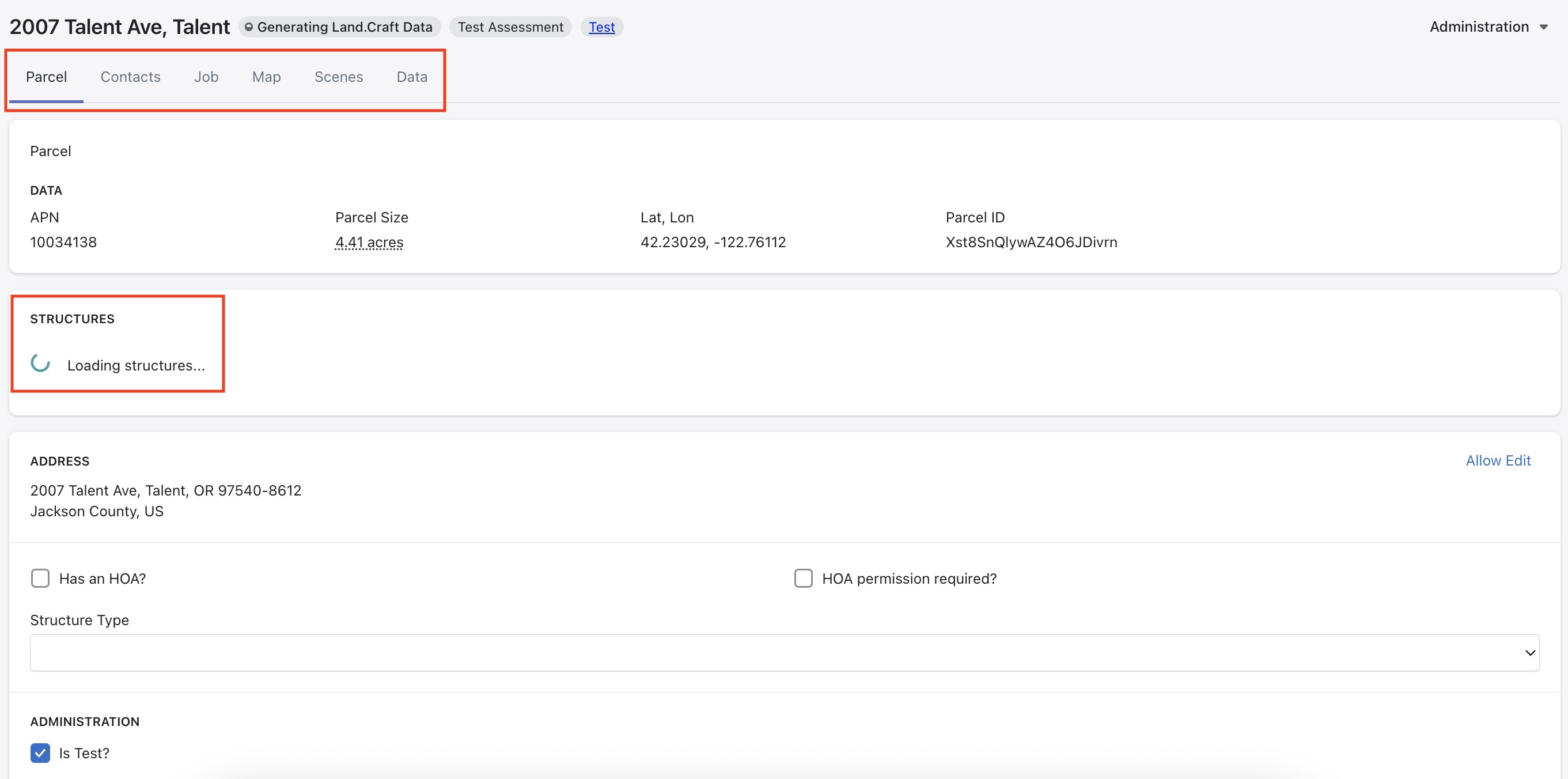
If an issue is encountered during the process or data generation, users can navigate to the Data tab to regenerate, or contact the Wuuii team for assistance.