
Appearance
Report Templates
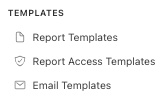
In the navigation panel on the left-hand side of the screen, click on the Templates menu - select Report Templates -
The user will be brought to a view showing a list of Active report templates currently configured in the system. Click on Edit to modify, Duplicate to create a copy of an existing report template and Archive to deactivate a template from the system.
The other tab in this view is the Archived tab which shows the archived templates, just click "Restore" to activate, allowing users to reference this template in the system.
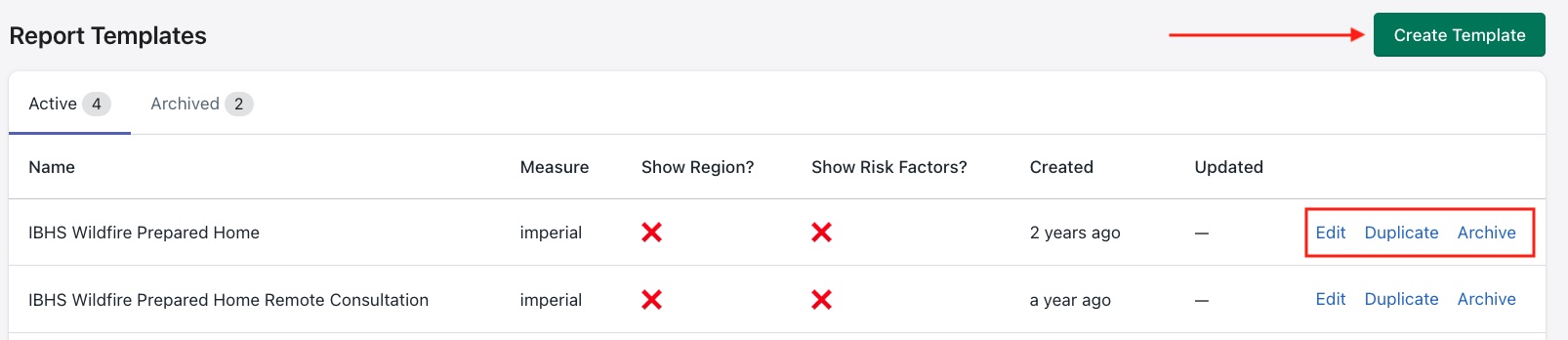
Each template controls the content, branding and sections that appear in a generated report. Use the Duplicate feature to use one of the existing templates as a starting point to create a new template.
Creating a new template
Click the Create Template button to configure a new report template.
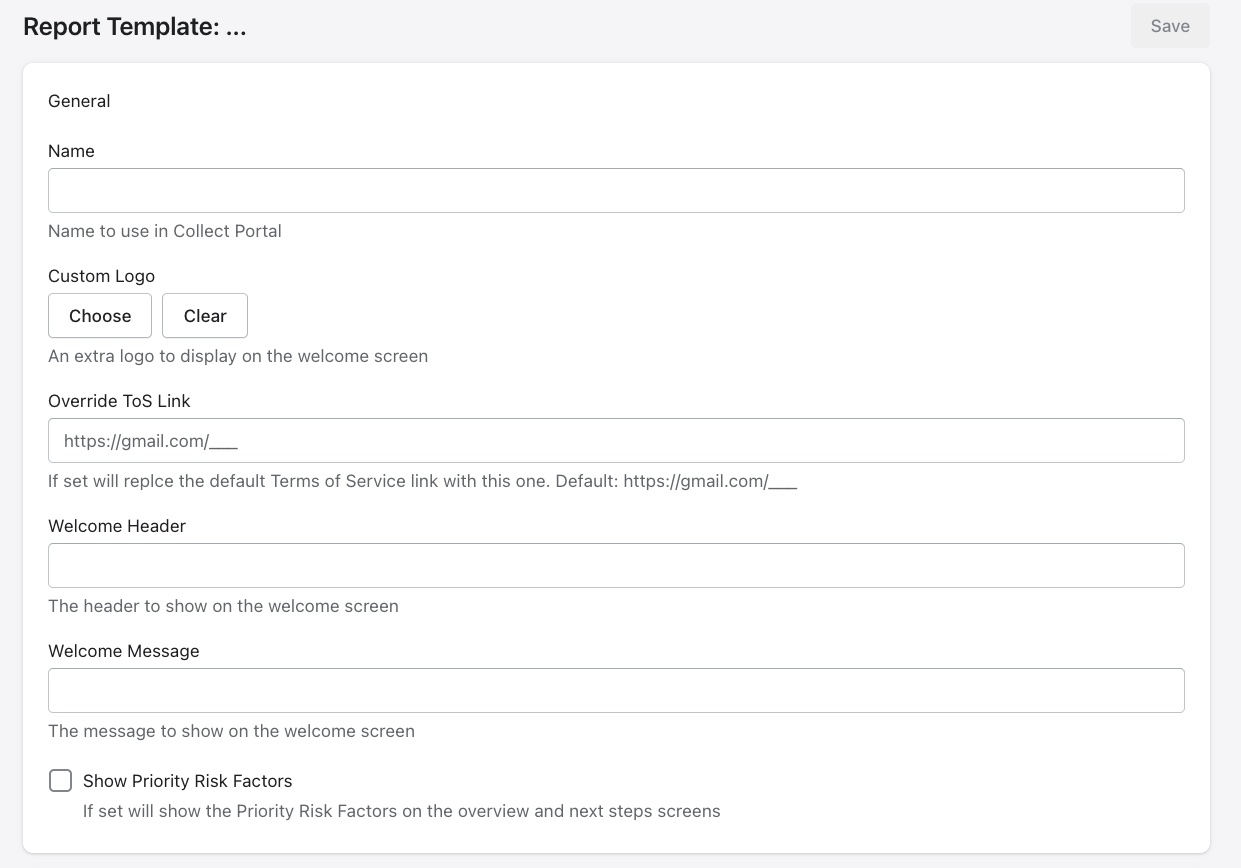
Here are the fields that are available to customize for this new template -
General
Core settings for the template's identity.
| Field | Description |
|---|---|
| Name | The template name as it appears in the Collect Portal |
| Custom Logo | The organization's logo can be configured here for the report. Use Choose to upload or Clear to remove |
| Override ToS Link | Replaces the default Terms of Service link with a custom URL |
| Welcome Header | The heading text displayed when user first logs in |
| Welcome Message | A short message displayed beneath the header |
| Show Priority Risk Factors | If enabled, displays Priority Risk Factors in the overview section of the report |
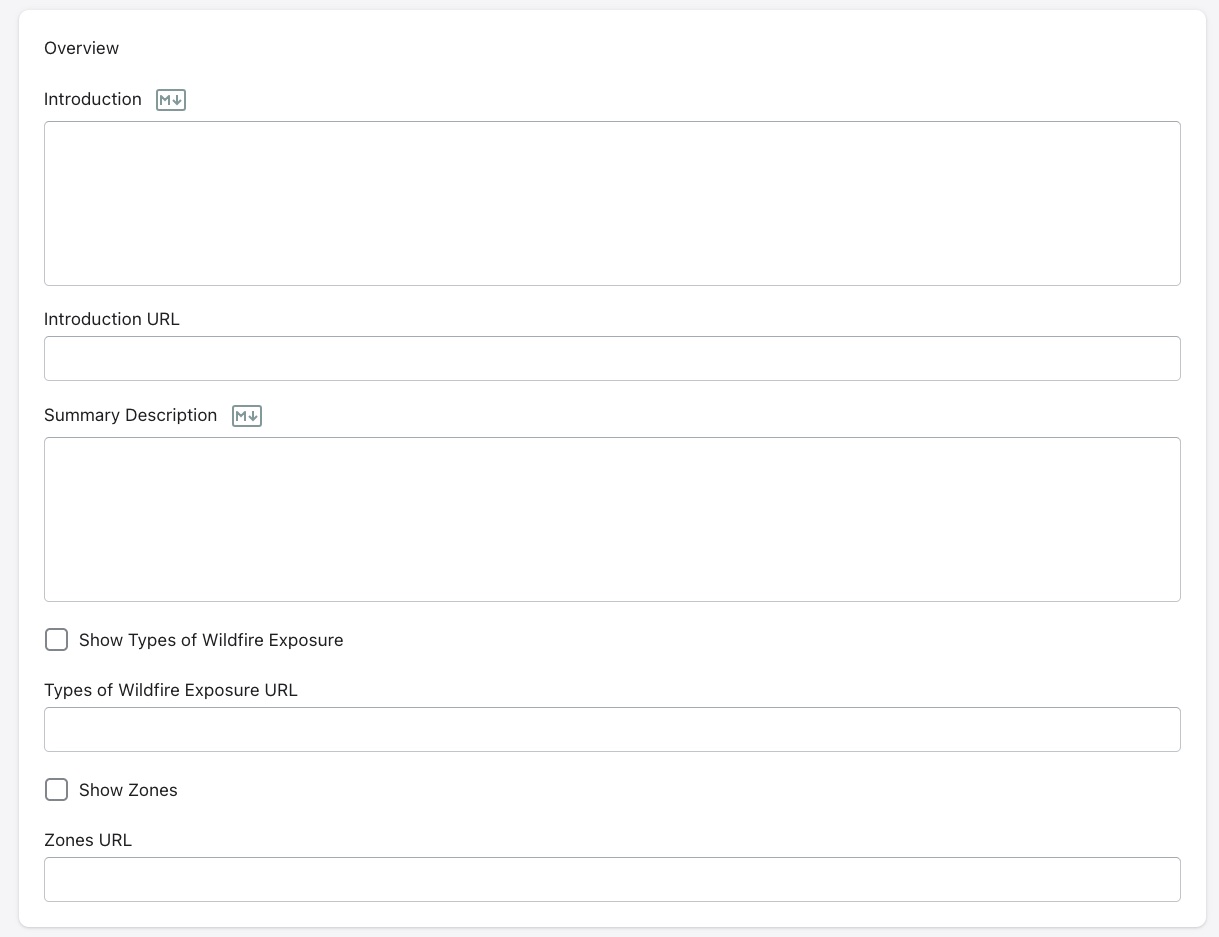
Overview
Controls the content under the "Overview" section shown at the start of the report.
The M icon indicates Markdown formatting is available. Click on the icon to be taken to a guide showing how to use Markdown.
| Field | Description |
|---|---|
| Introduction | Main introductory text at the beginning of the report. |
| Introduction URL | A link to supplementary introductory content |
| Summary Description | This section controls the content under the "Report Summary" section in the report |
| Show Types of Wildfire Exposure | If enabled, displays the wildfire exposure types section |
| Types of Wildfire Exposure URL | A link to more information about wildfire exposure types |
| Show Zones | If enabled, displays the zones section in the report |
| Zones URL | A link to more information about zones |
Region
Controls the regional context section of the report.
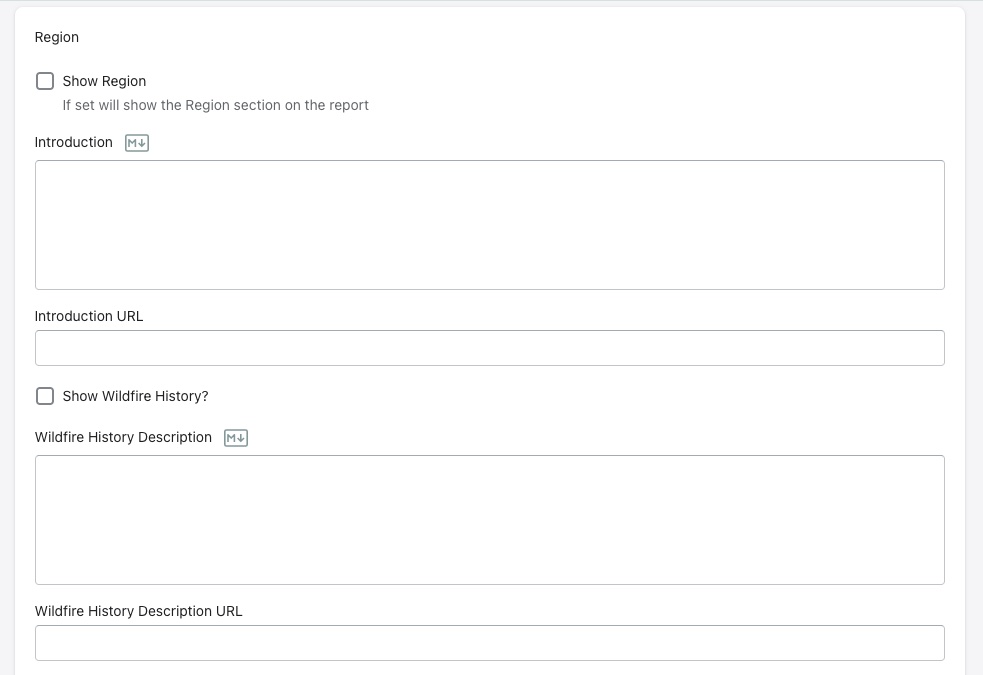
| Field | Description |
|---|---|
| Show Region | If enabled, the Region section will appear in the report |
| Introduction | Introductory text for the region section. |
| Introduction URL | A link to supplementary regional content |
| Show Wildfire History? | If enabled, displays wildfire history for the region |
| Wildfire History Description | Descriptive text explaining the wildfire history data. |
| Wildfire History Description URL | A link to more information about the region's wildfire history |
| Show Fire Stations? | If enabled, displays fire station information |
| Fire Stations Description | Descriptive text for the fire stations section. |
| Fire Stations Description URL | A link to more information about fire stations |
| Show Wind Zone? | If enabled, displays wind zone information for the region |
| Wind Zone Description | Descriptive text for the wind zone section |
| Wind Zone Description URL | A link to more information about wind zones |
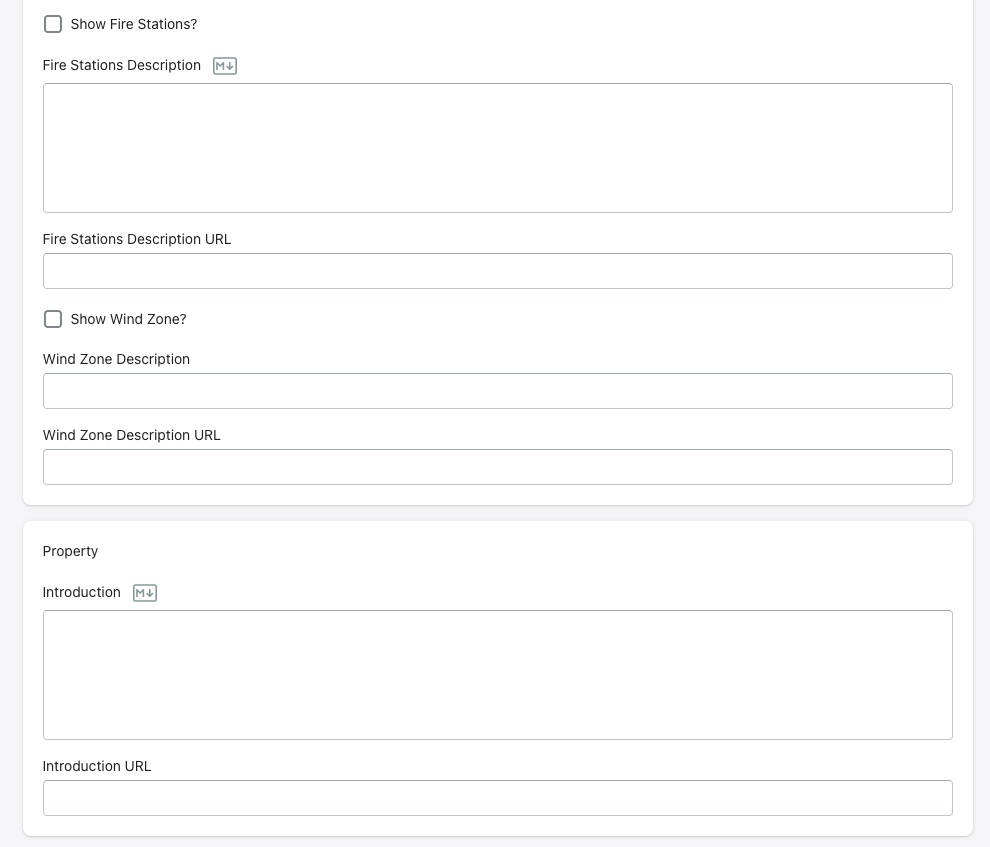
Property
Controls the property section of the report.
| Field | Description |
|---|---|
| Introduction | Introductory text for the "Property" section in the report. |
| Introduction URL | A link to supplementary property-level content |
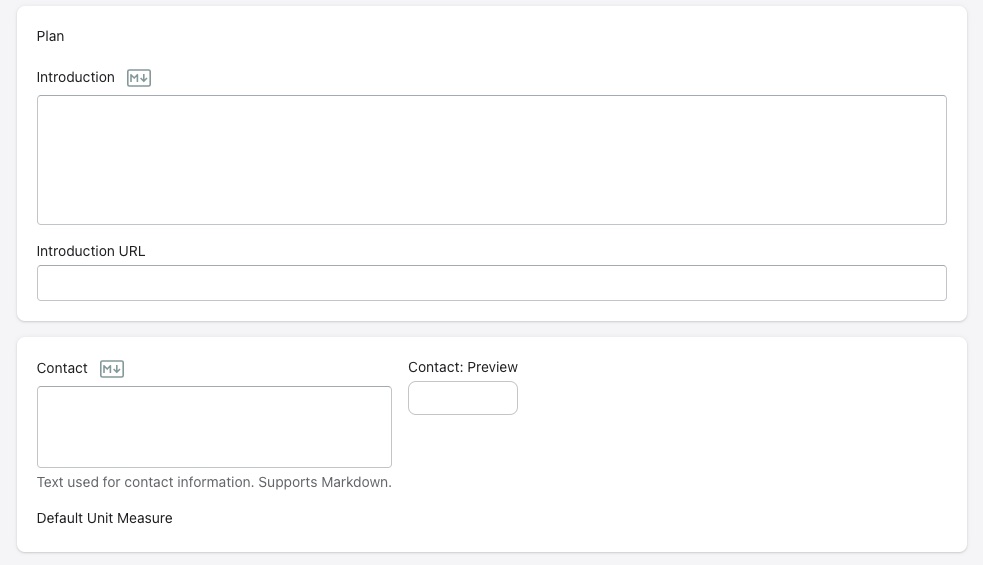
Plan
Controls the treatment plan section of the report.
| Field | Description |
|---|---|
| Introduction | Introductory text for the "Treatment Plan" section in the report. |
| Introduction URL | A link to supplementary treatment content |
Contact
An example contact section configuration is shown below -
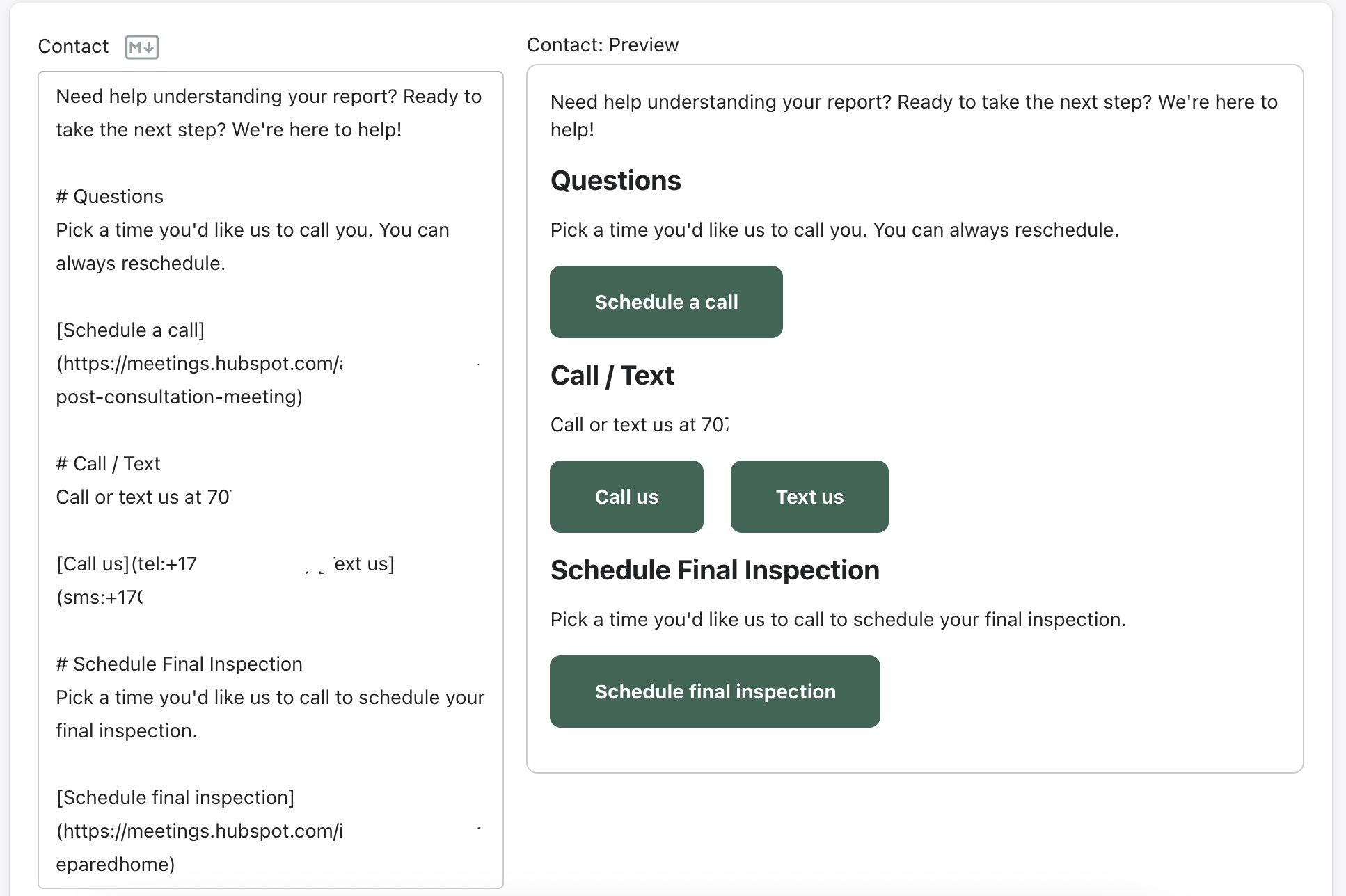
On the left panel the rich text editor supports Markdown formatting, allowing users to add bold text, links, lists and other rich content. The right panel shows a preview of the formatted output. Click on the M icon to view a Markdown formatting guide.
Please note some personal info has been hidden from the screen capture above.