Appearance
Users List
Navigate to the profile icon in the bottom left-hand corner of the screen Account Name > Settings > Users to manage user profiles for the portal. Please note this feature may be disabled based on the user's access level. Contact your system admin or the Wuuii team for assistance.

The user will be brought to a tab showing a list of Active users currently configured for the portal. Click on Edit to modify a user profile, profiles can also be inactivated or simply viewed from this list view. Please note some user info has been hidden below to protect their info.
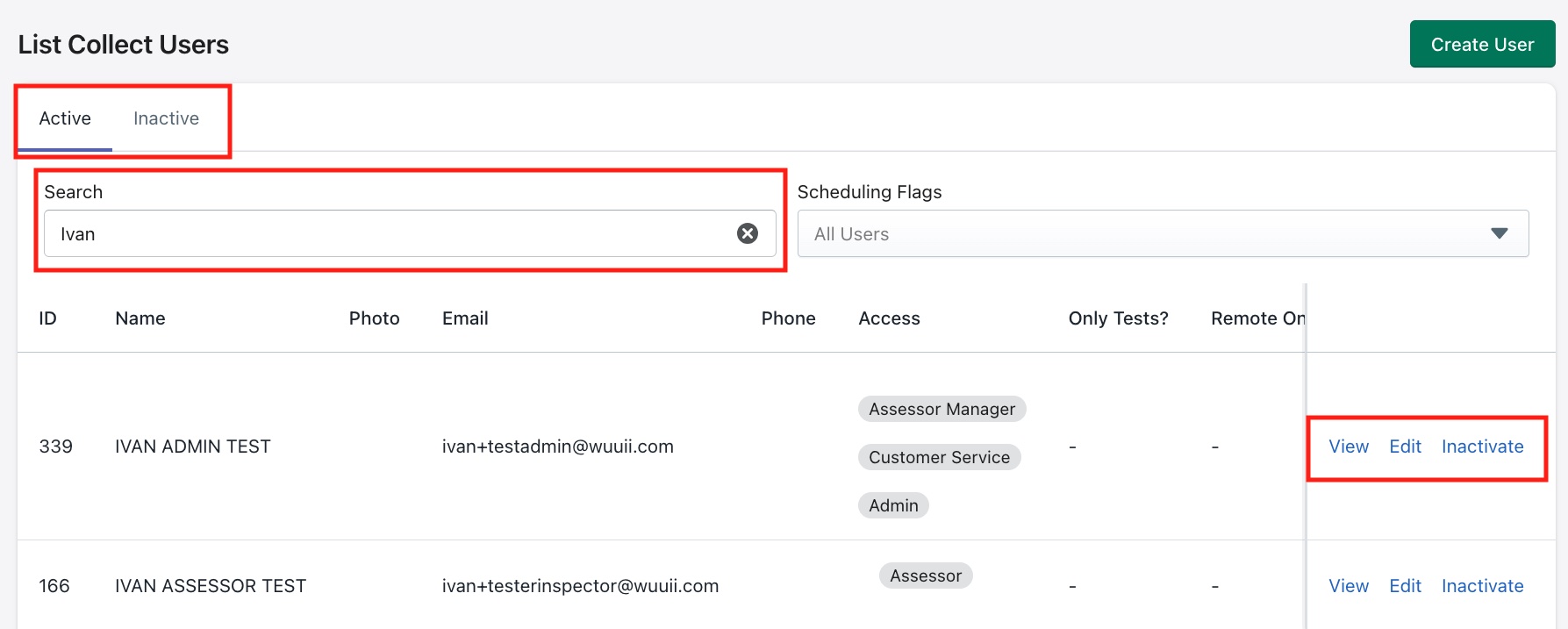
The search box shown below can be used to look up a user. The Scheduling Flags filter can be used to look up users that are configured for Test or Remote assignments. More info about this filter can be found further along in this document.
Creating a new user
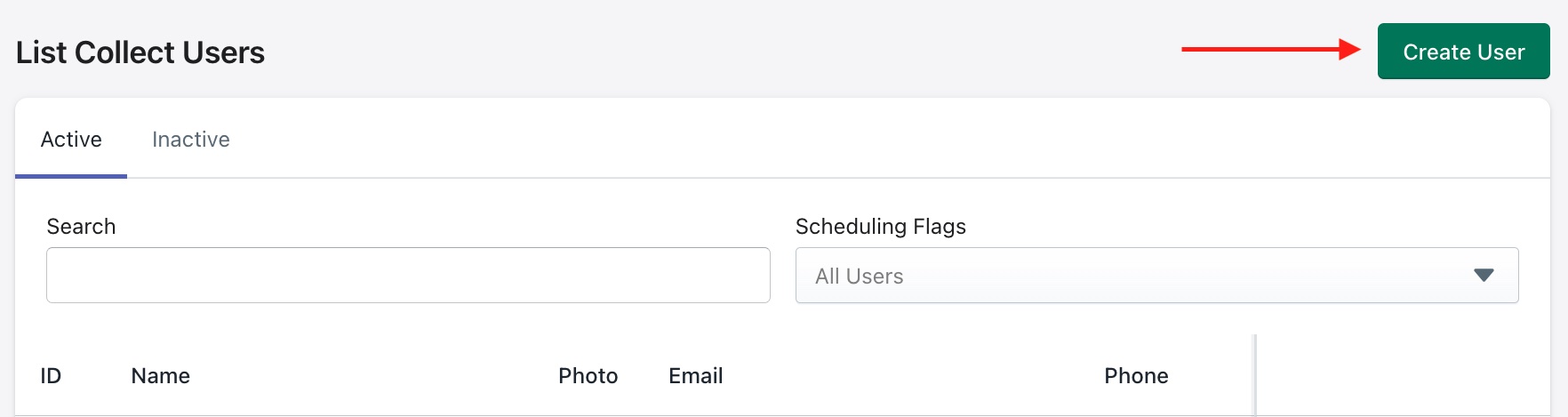
The Create User button can be used to add a new user.
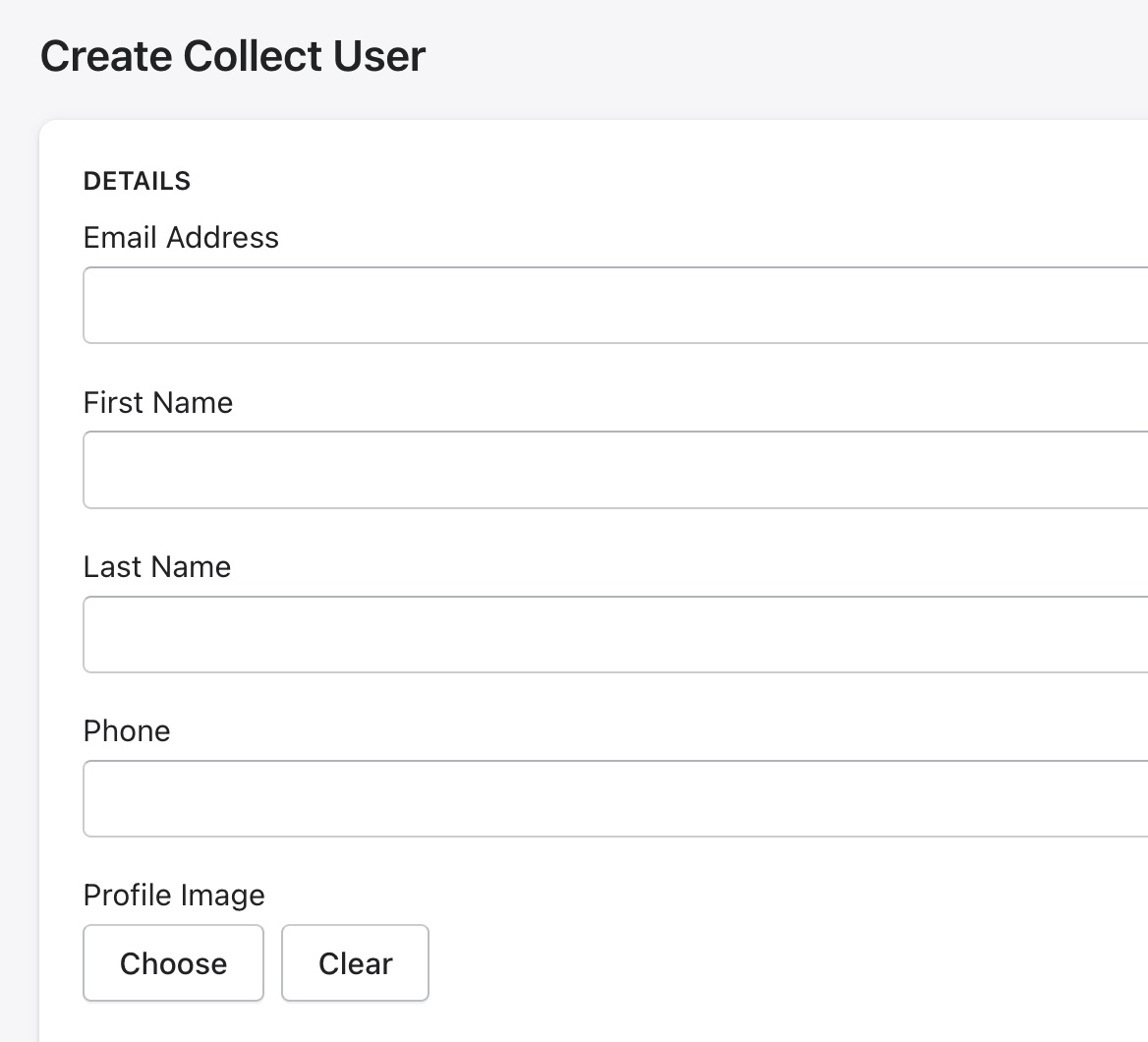
The portal is able to record standard user information like name, email, profile picture and phone number.
Important
None of this information is visible to external users or contacts, it is only visible to account users.
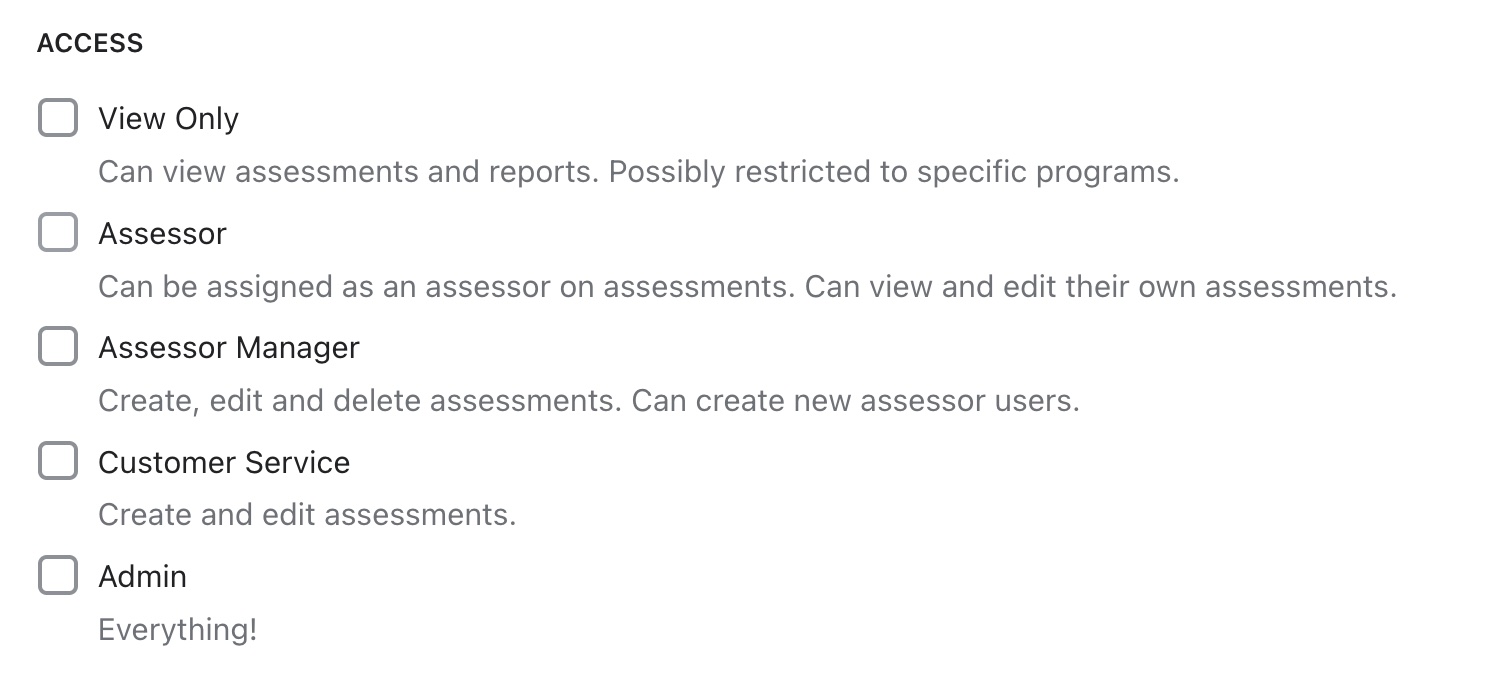
The access level for a user is also configured here, these are the available options -
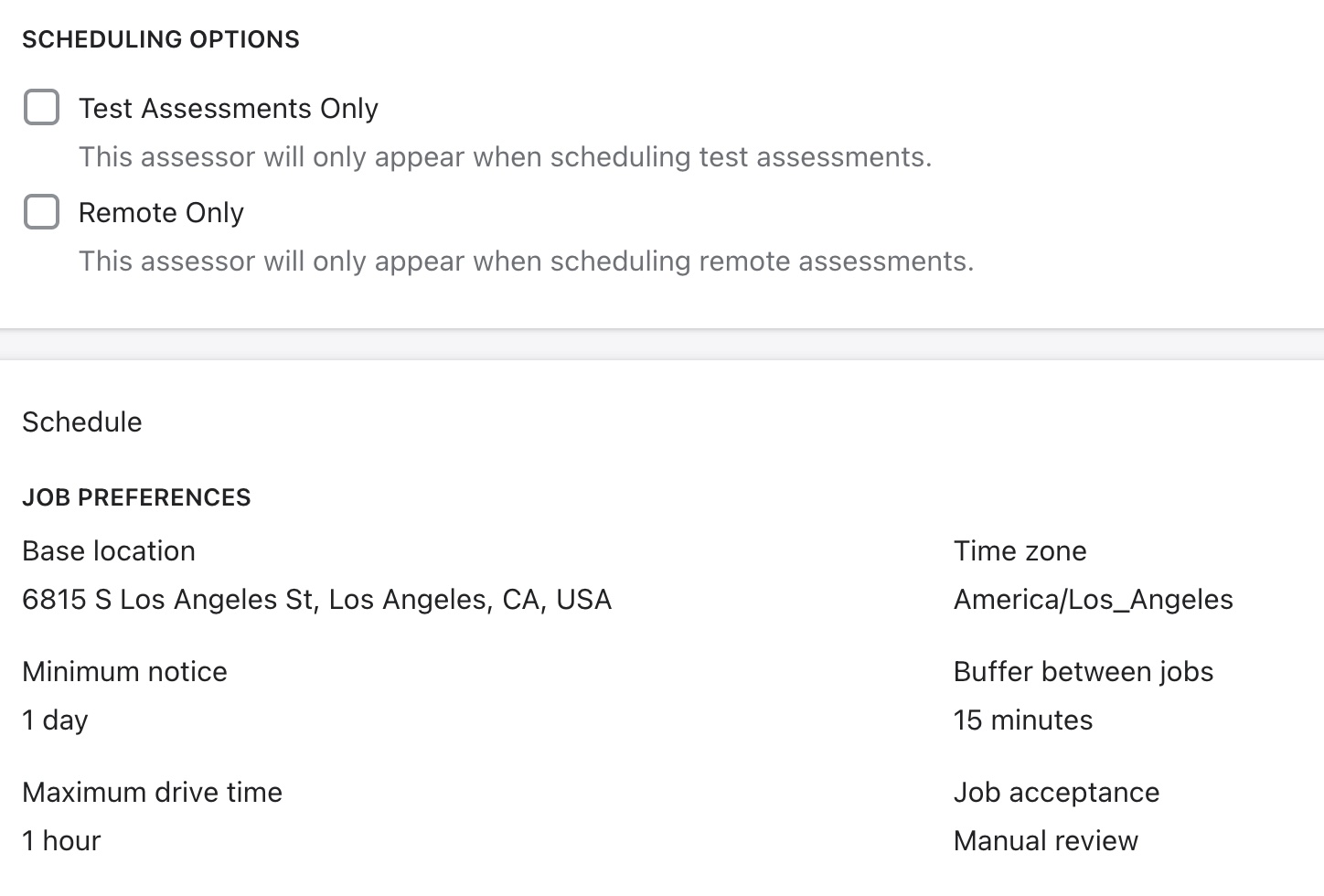
An assessor could also be assigned to test jobs only as well as set their remote assignments preference here.
In the address field the base location for a user can be configured for example if they work from home, their home address or an office location. This address can be used to calculate job assignments and travel time.
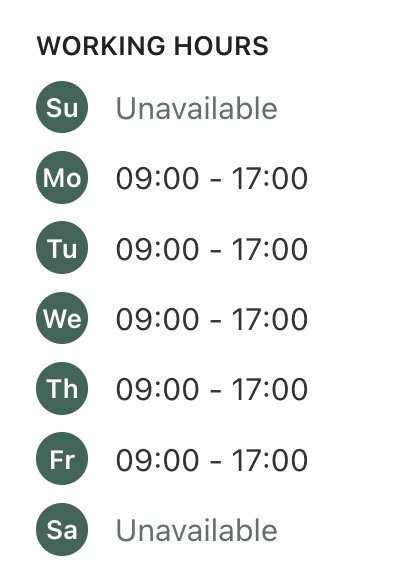
A users working hours can be set here as well. Note that admins cannot configure user working hours, they can only view them.
Inactive Users
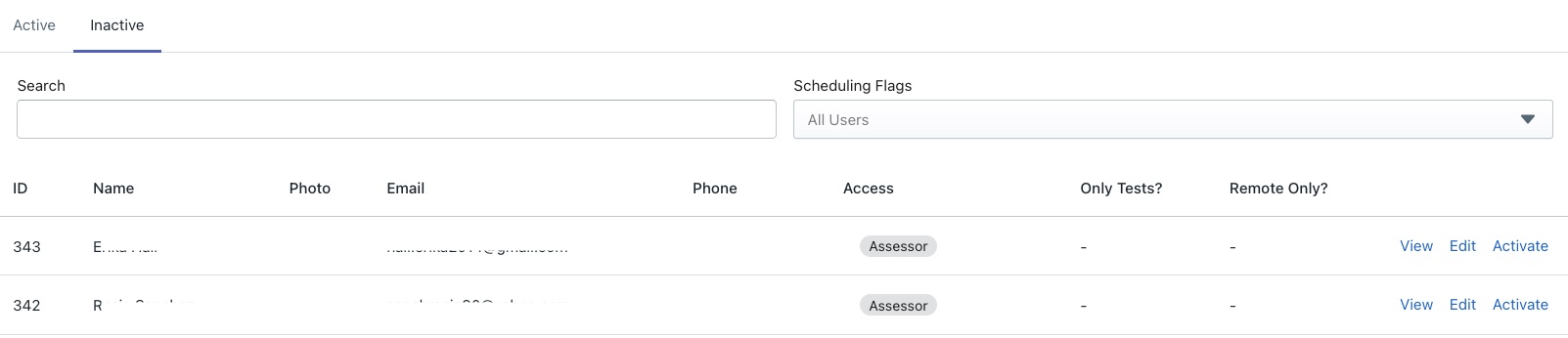
The other tab in this view is the Inactive tab which shows the users who currently do not have access to the portal. Please note some user info has been hidden below to protect their info. Just click "Activate" to provide users access again.