
Appearance
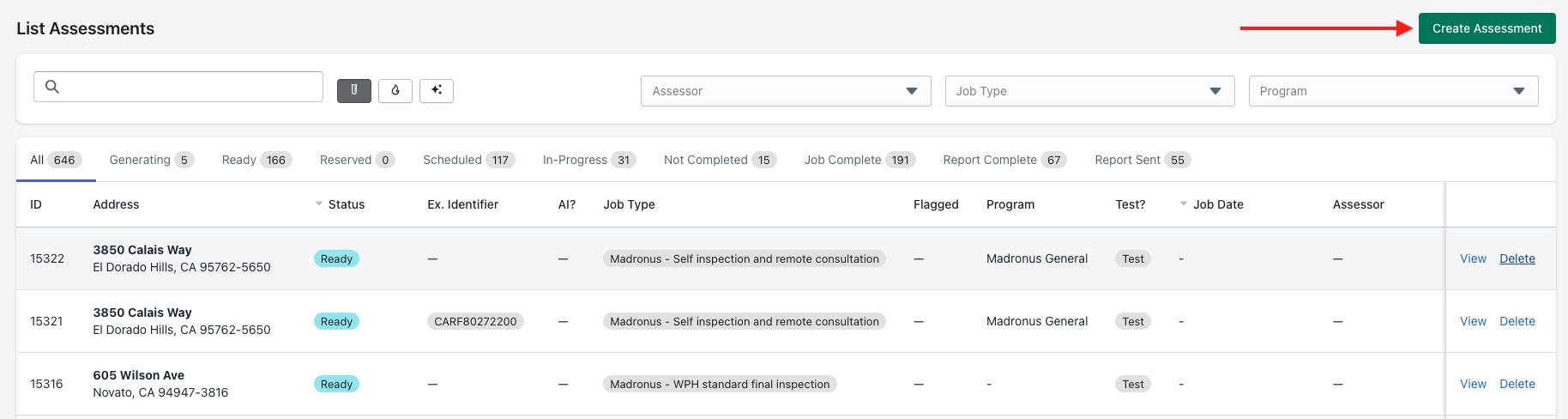
List
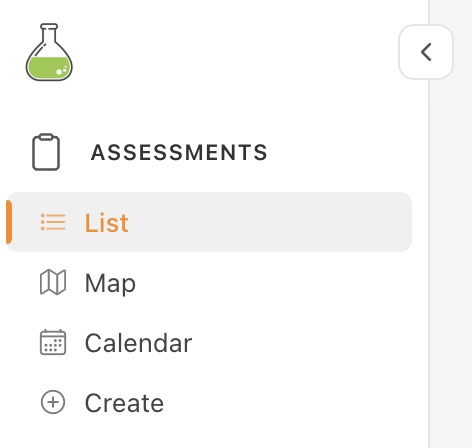
In the navigation panel on the left-hand side of the screen, under the Assessments menu, users are able to review and delete existing assessments using the List view -
The Create Assessment button shown below can be used to create a new assessment see this page for more info.
Search Box
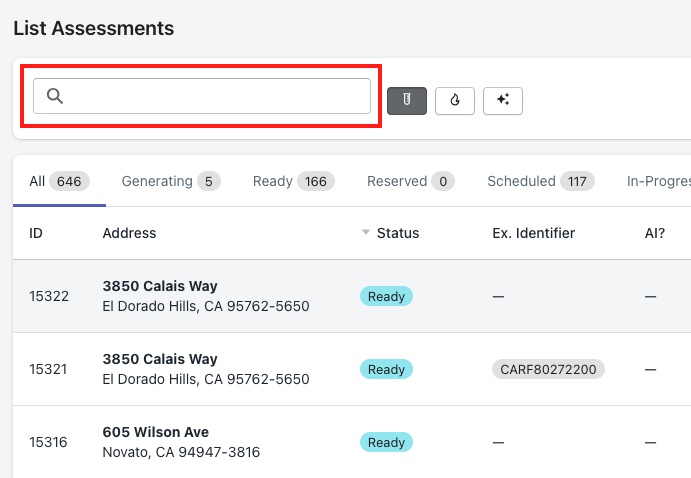
The search box can be used to search using the following parameters -
- Address
- APN
- Contact info - name, email, phone number
- Assessment ID
- External ID (if configured)
Additionally the icons next to the search box can be used to filter for Test, IBHS and AI assessments respectively.
Additional Filters

Filters for a specific Assessor, Job Type and Program can also be used to find an assessment or a list of assessments.
Status Tabs
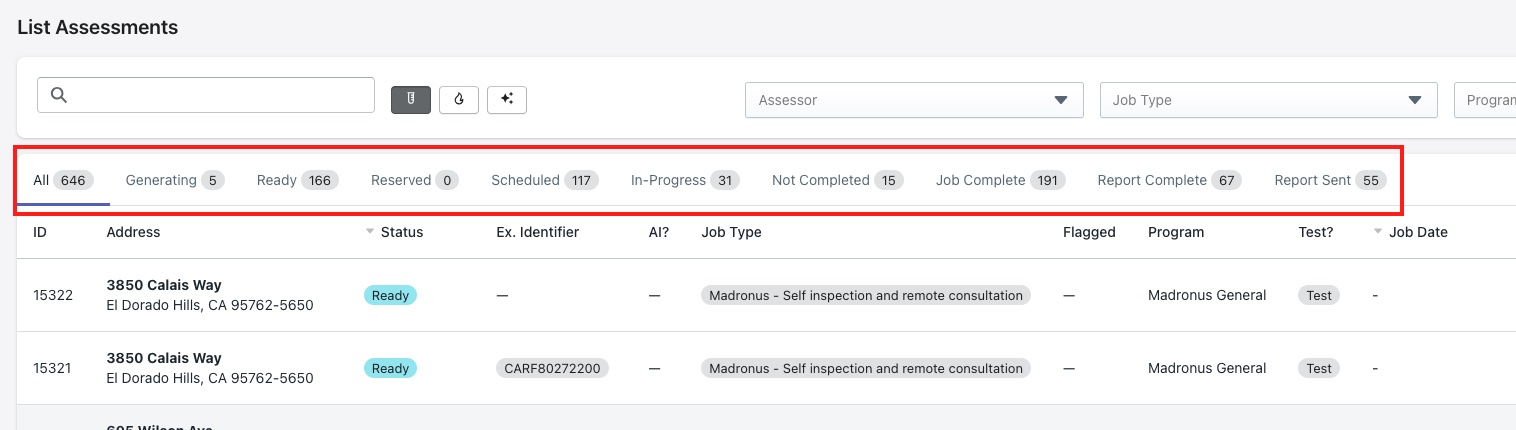
Users are able to switch between different tabs for assessment status for example Scheduled, In-Progress, Report Complete and so on. These tabs provide admins with an overview of program progress and overall assessment activity.
Assessment Actions

The View and Delete buttons against each assessment record can be used to view details and delete the record respectively.
Saving Display Settings
The number of records displayed can be adjusted in the bottom right corner of the screen. To save preferred display settings such as defaulting to a specific status like Report Sent or a set number of records — refer to the Preferences page.