Appearance
Map
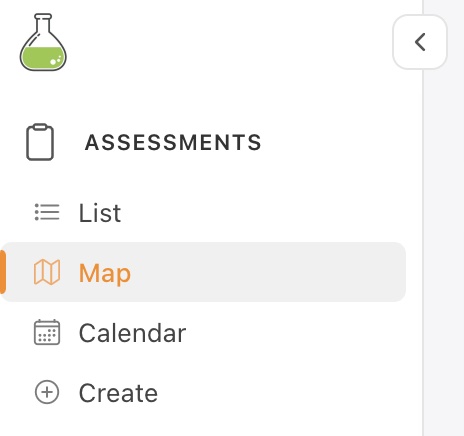
In the navigation panel on the left-hand side of the screen, under the Assessments menu, the Map view shows the user pins for all assessments in the system.
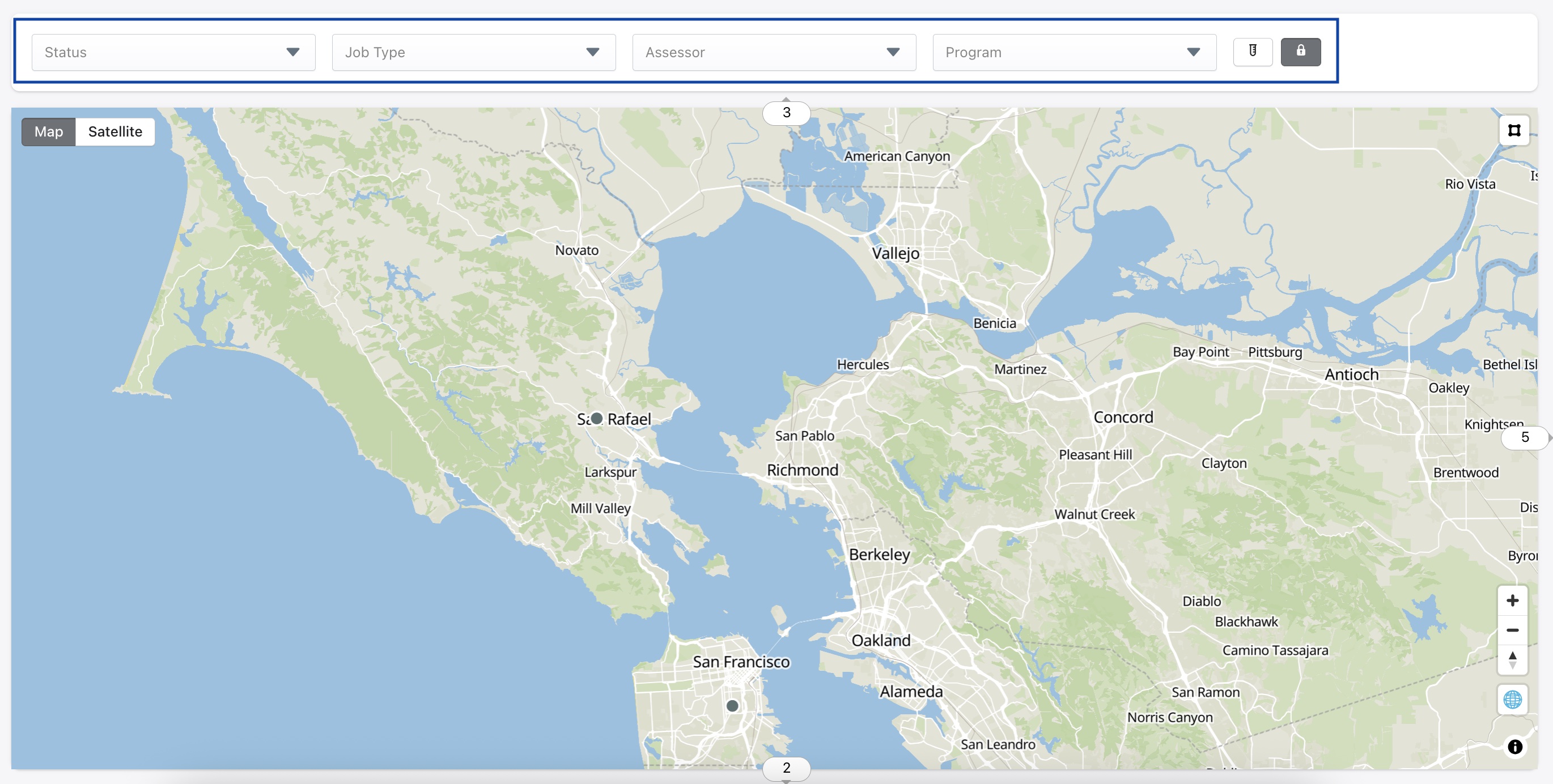
Filters like Status, Job Type, Assessor and Program (shown in blue below) can be used to narrow down the search criteria in Map view. The Test assessments filter icon can be used to look up test assessments. The Lock icon lets the user lock a map view so that the auto zoom features are disabled.
User is able to toggle to Satellite view by using the buttons on top left corner of the screen.
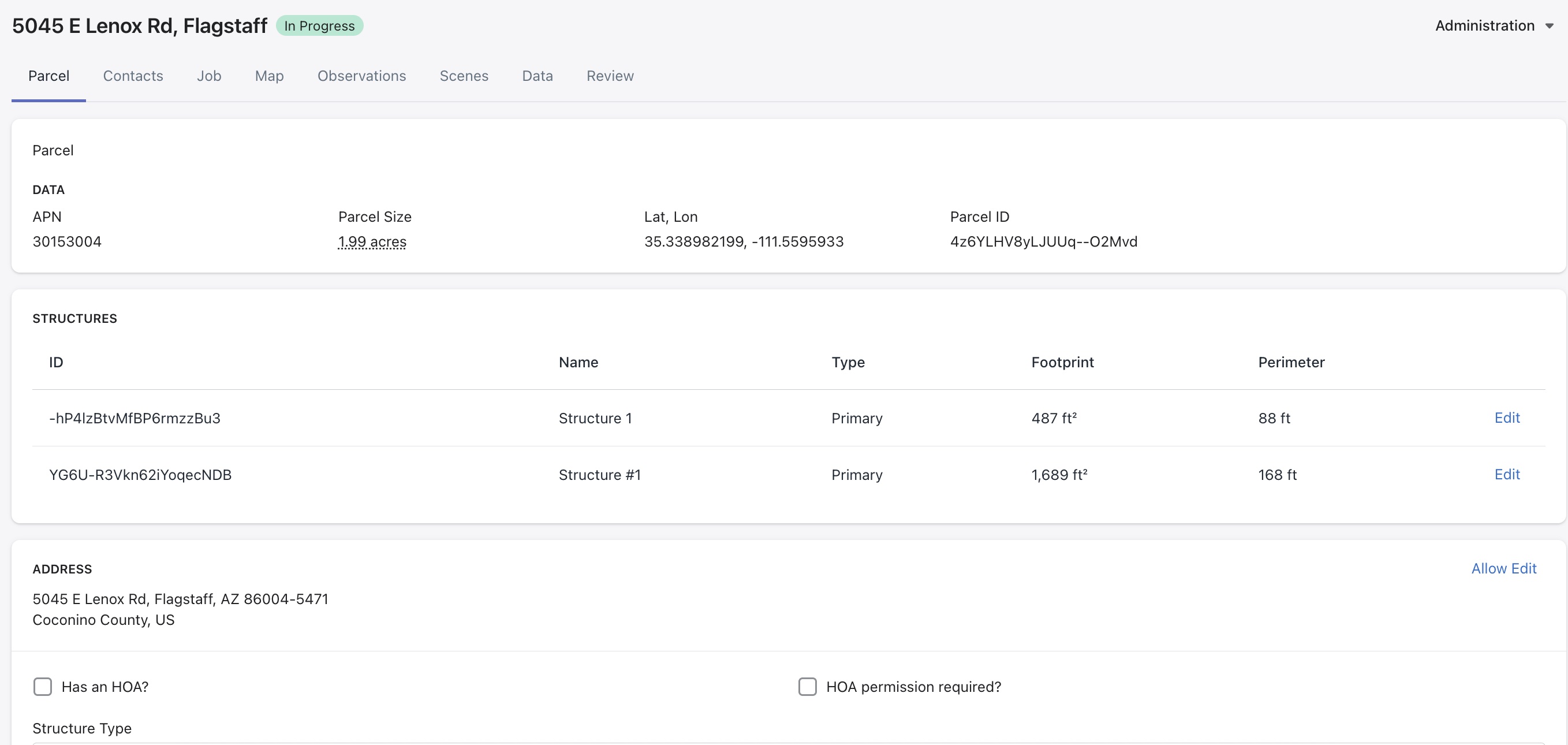
Clicking on a pin will bring up the assessment -
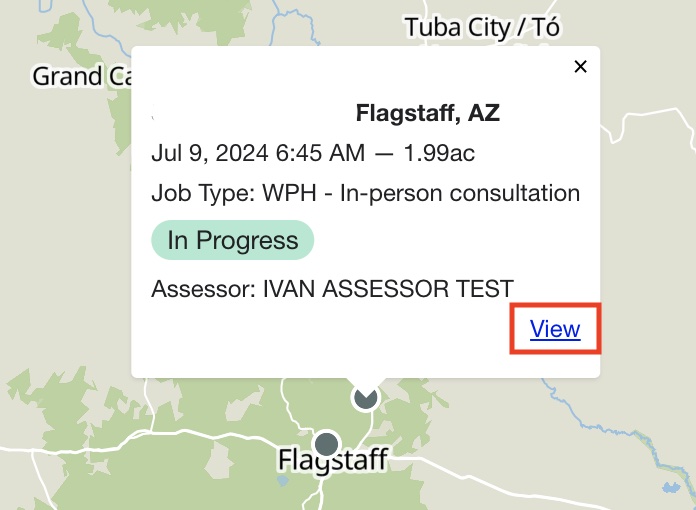
Click View to view details for the selected assessment.
Bulk Assignments
If there are a large number of jobs that are in a Ready status or need to be scheduled, use the Polygon tool (square icon in the top-right corner of the map) to draw a shape around the assessments.
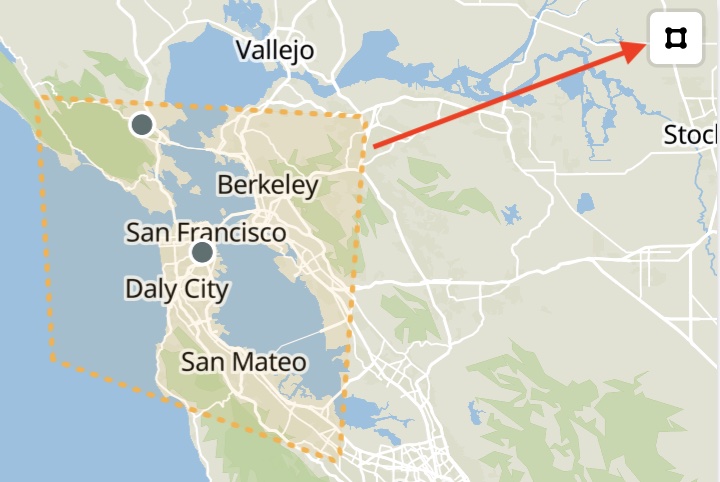
And schedule and assign parcels in selected map area -

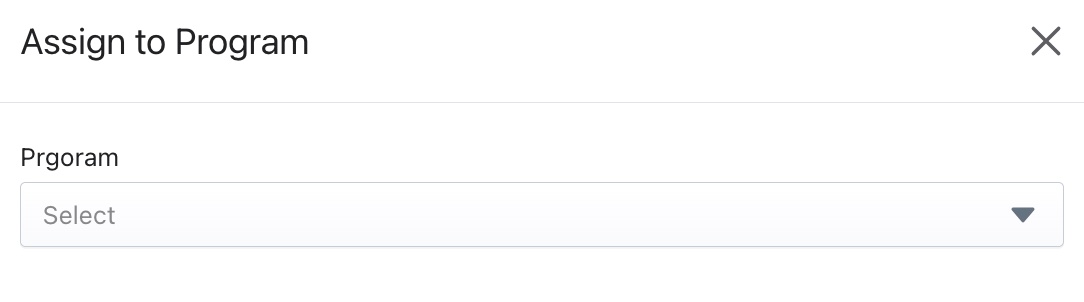
For example user can click on Assign to Program to assign selected parcels to that program type -