Appearance
Organization
Navigate to the profile icon in the bottom left-hand corner of the screen Account Name > Settings to manage org settings.
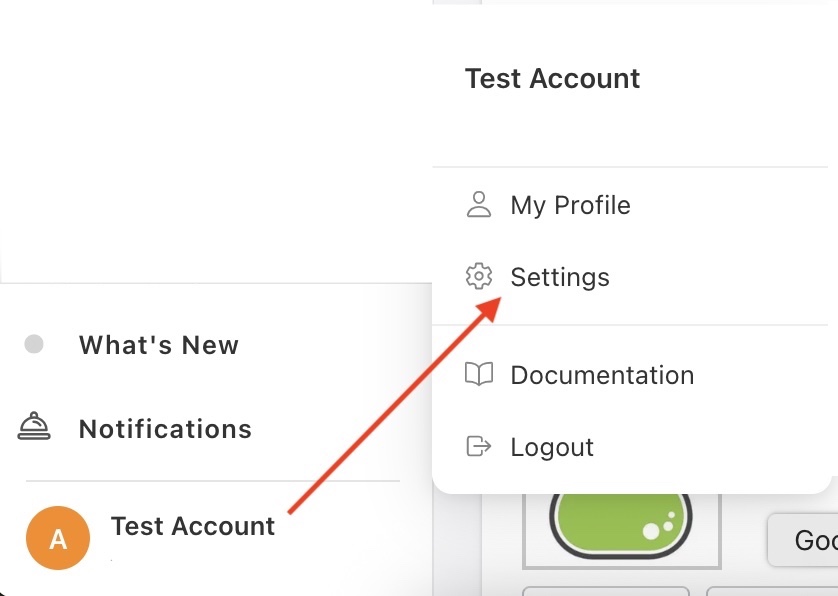
From here the administrators are able to configure core details of their portal — from time zone and units of measurement, to branding and appearance. Getting these settings right ensures the portal looks and behaves consistently for everyone in the organization.
Details
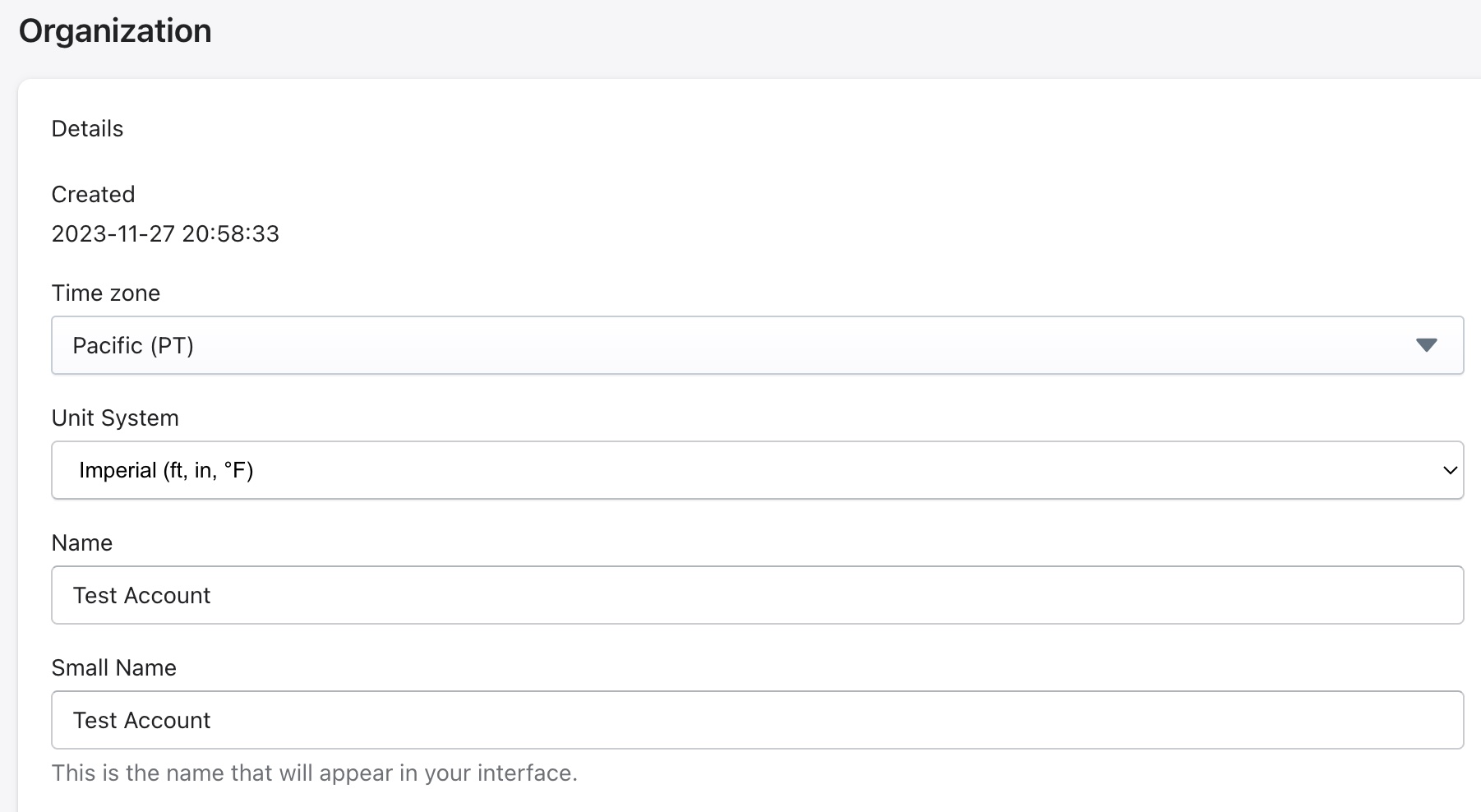
This section displays the organization's key account information and core configuration options.
Created Shows the date and time the organization account was first created in the system. This is a read-only field and cannot be edited.
Time Zone Sets the default time zone for the organization. This affects how dates, times and scheduled jobs are displayed throughout the portal.
Example: An organization operating in California would select Pacific (PT) to ensure all assessment times and scheduling reflect Pacific Time correctly.
Unit System Defines the units of measurement used throughout the portal and in generated reports. Options include:
Imperial (ft, in, °F)** — used in the United States
Metric (m, cm, °C)** — used internationally
This setting affects how measurements appear in assessments, observations and reports across the entire organization.
Name The full official name of the organization.
Example:
Acme Property Services LLC
Small Name A shortened version of the organization name.
Example:
Acme Services
Appearance
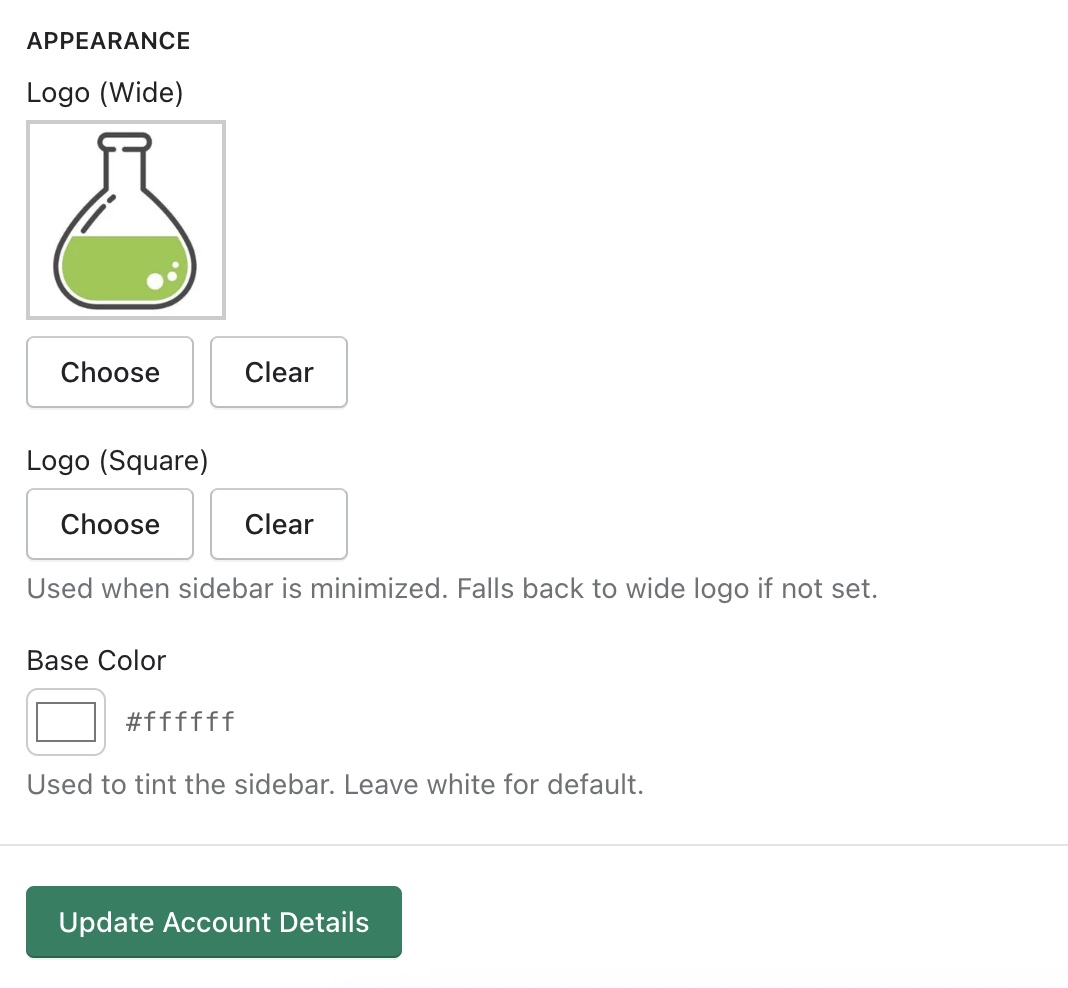
The Appearance section allows administrators to brand the portal with the organization's logo and colors, giving the interface a consistent and professional look.
Logo (Wide) The primary logo displayed in the portal's sidebar when it is fully expanded. This is the main branding element users will see as they navigate the portal.
- Click Choose to upload an image file
- Click Clear to remove the current logo
Logo (Square) A square version of the logo used when the sidebar is minimized to a narrow icon-only view. If no square logo is uploaded, the portal will automatically fall back to the wide logo.
- Click Choose to upload a square image file
- Click Clear to remove the current logo
Example: Many organizations use just their icon or initials as the square logo, since space is limited when the sidebar is collapsed.
Base Color Sets the background tint color of the portal sidebar. This is defined using a hex color code (e.g. #ffffff for white).
- Click the color swatch to open a color picker
- Or type a hex code directly into the field
- Leave as
#ffffff(white) to use the default portal styling
Example: An organization with a navy blue brand identity might set the base color to
#002855to match their branding across the portal.
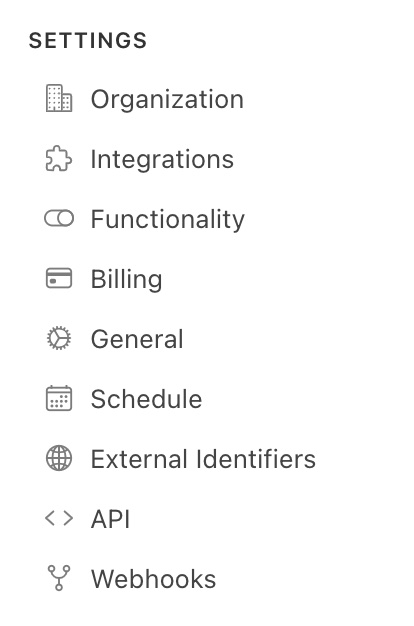
Click on the Settings icon in the navigation panel on the left-hand side of the screen to access additional settings for your organization: