
Appearance
Organization Schedule Settings
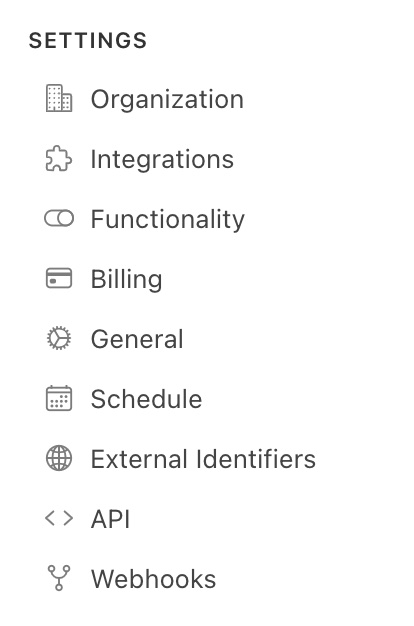
To get to organization schedule navigate to Account - Settings - Settings icon in the navigation panel on the left-hand side of the screen - Schedule
Overview
The Organization Schedule page is where administrators configure the default scheduling rules, working hours and notification settings that apply across the entire organization. These settings act as the baseline for all users — ensuring consistent scheduling behaviour from day one, even before individual users have configured their own preferences.
Job Settings
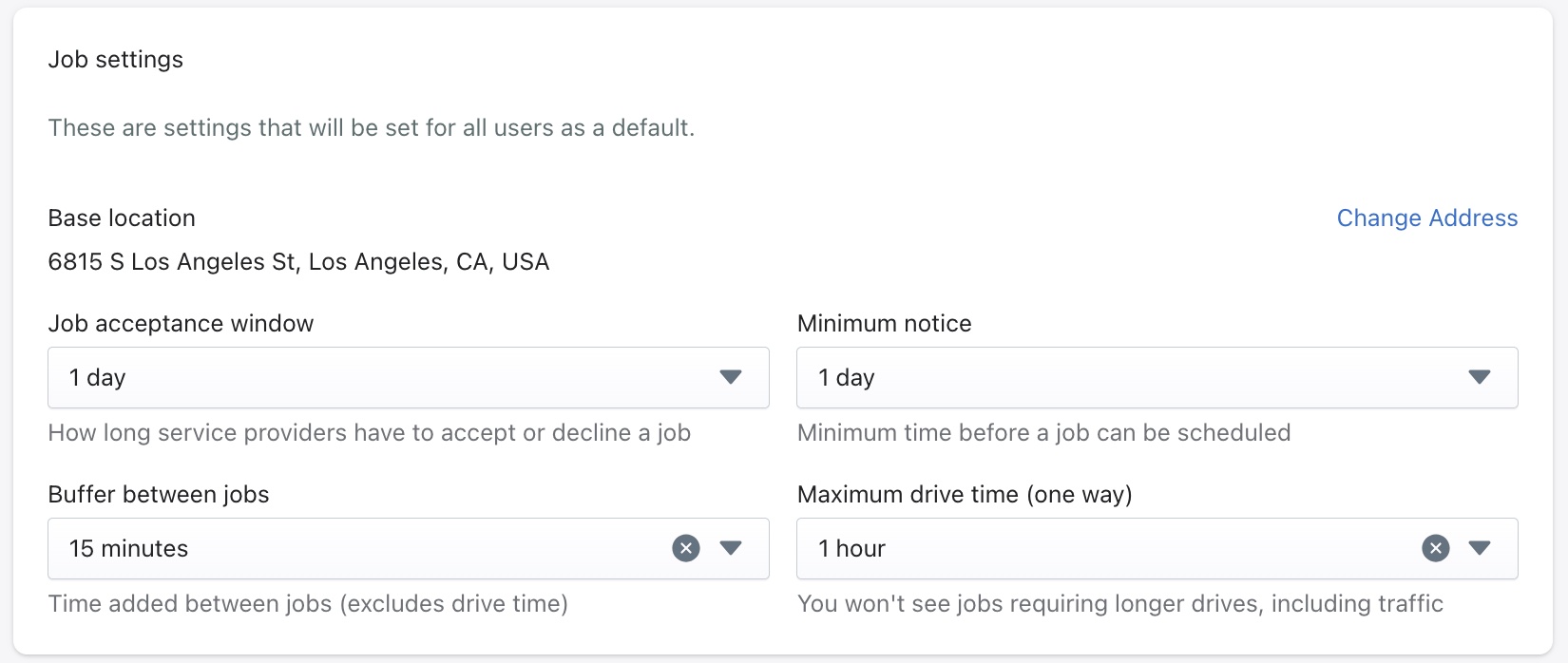
These are the default scheduling settings applied to all users in the organization. Individual users can override these defaults from their own Schedule settings page.
Base Location
The organization's primary address used as the default start and end point for travel time calculations across all jobs. This is used internally for drive time estimates and is not visible to clients.
To update the base location, click Change Address in the top right of the Job Settings section.
Job Acceptance Window
The amount of time an assessor has to accept or decline a job before it is reassigned or escalated.
Example: With a window of 1 day, if an assessor doesn't respond to a job within 24 hours, the system can reassign it automatically.
Minimum Notice
The minimum amount of time required before a job can be scheduled. This prevents jobs from being booked at the last minute without enough time to prepare.
Example: A minimum notice of 1 day means no jobs can be scheduled for same-day appointments.
Buffer Between Jobs
The amount of time automatically added between back-to-back jobs, not including drive time. This gives assessors breathing room between appointments for notes, travel preparation or short breaks.
Example: A 15-minute buffer means if one job ends at 2:00 PM, the next job won't start until at least 2:15 PM.
Maximum Drive Time (One Way)
The furthest an assessor is expected to drive to reach a job site, calculated using typical traffic conditions. Assessors will not be assigned jobs that exceed this drive time from their base location.
Example: A maximum of 1 hour ensures assessors aren't sent to jobs that would require a longer commute each way.
Working Hours
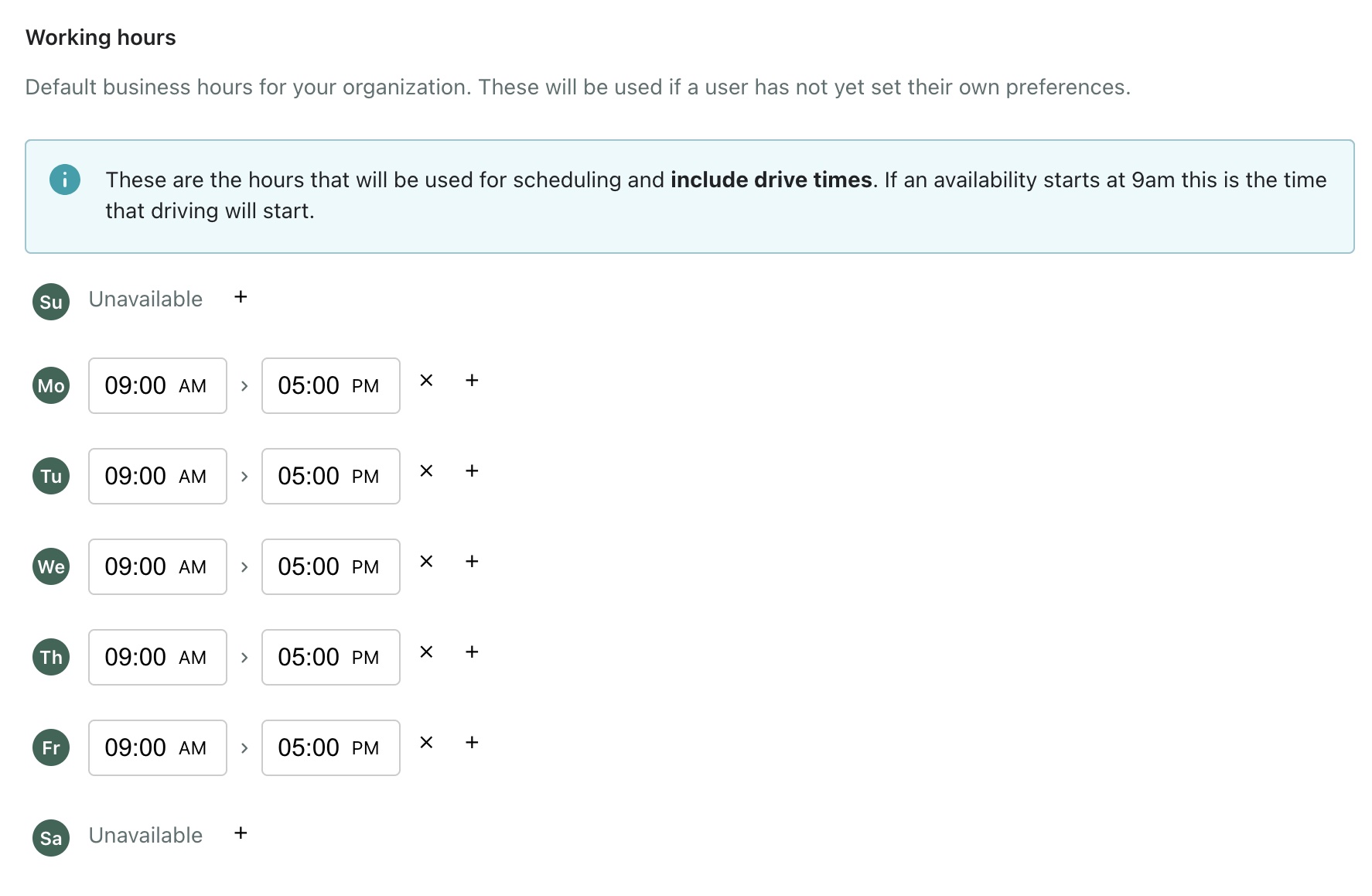
Working hours define the organization's default availability window — the hours during which jobs can be scheduled for assessors. These defaults apply to all users who have not yet set their own working hours.
Important
Working hours include drive time. If availability starts at 9:00 AM, the system treats that as the time an assessor can begin driving to their first job — not the time the first job starts.
Setting Default Hours
Working hours can be configured for each day of the week individually:
- Click the + button next to a day to add available hours
- Click × to remove a time slot for that day
- Days marked as Unavailable (such as Sunday and Saturday in the default setup) mean no jobs will be scheduled on those days organization-wide
The default configuration is 9:00 AM – 5:00 PM, Monday through Friday.
Contact Email Notifications
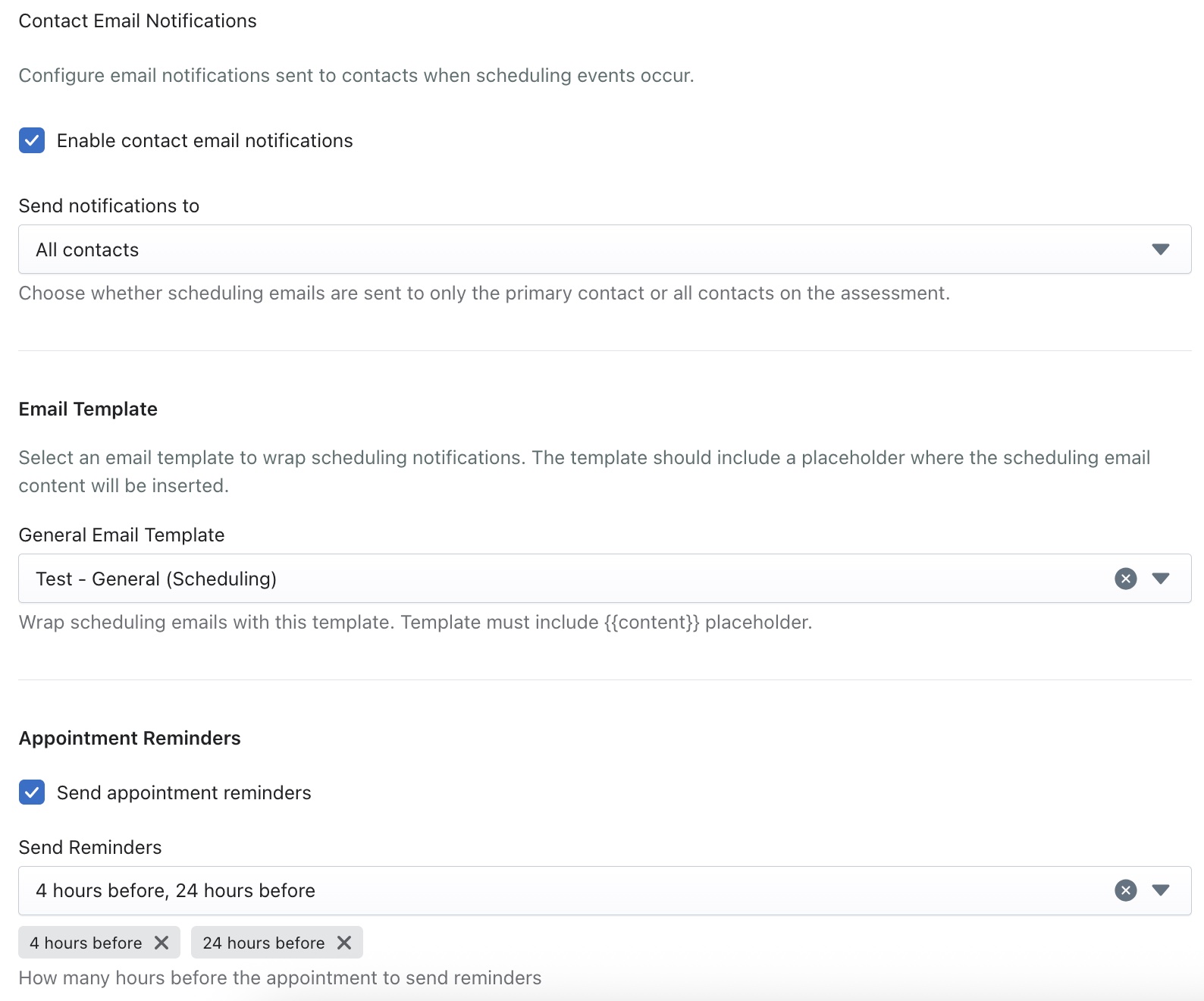
This section controls the automated emails sent to contacts associated with assessments when scheduling events occur — such as when a job is booked, rescheduled or cancelled.
Enable Contact Email Notifications
Check this box to turn on automated scheduling emails to contacts. When enabled, contacts will be notified automatically at key scheduling milestones without any manual action required from the admin team.
Send Notifications To
Choose which contacts on an assessment receive scheduling emails:
- All contacts — Every contact associated with the assessment will receive scheduling notifications
- Primary contact only — Only the main point of contact for the assessment will be notified
Example: For a home assessment, the organization may only want to notify the homeowner (primary contact) rather than every person listed on the assessment.
Email Template
Select the email template used to wrap all scheduling notification emails. The selected template must include a "content" placeholder — this is where the scheduling details are automatically inserted when the email is sent.
Our team at Wuuii can help your org set up a custom email template should you need one.
Appointment Reminders
Appointment reminders are automated emails sent to contacts ahead of a scheduled assessment to reduce no-shows and keep everyone informed.
Send Appointment Reminders
Check this box to enable automatic reminder emails. When active, the system will send reminder emails at the intervals configured below.
Send Reminders
Select one or more time intervals before an appointment at which reminders will be sent. Multiple reminders can be configured for the same job.
Example: Setting reminders for 4 hours before and 24 hours before means contacts receive a reminder the day before their assessment and again on the morning of the appointment — reducing missed appointments significantly.
Job Status Notifications
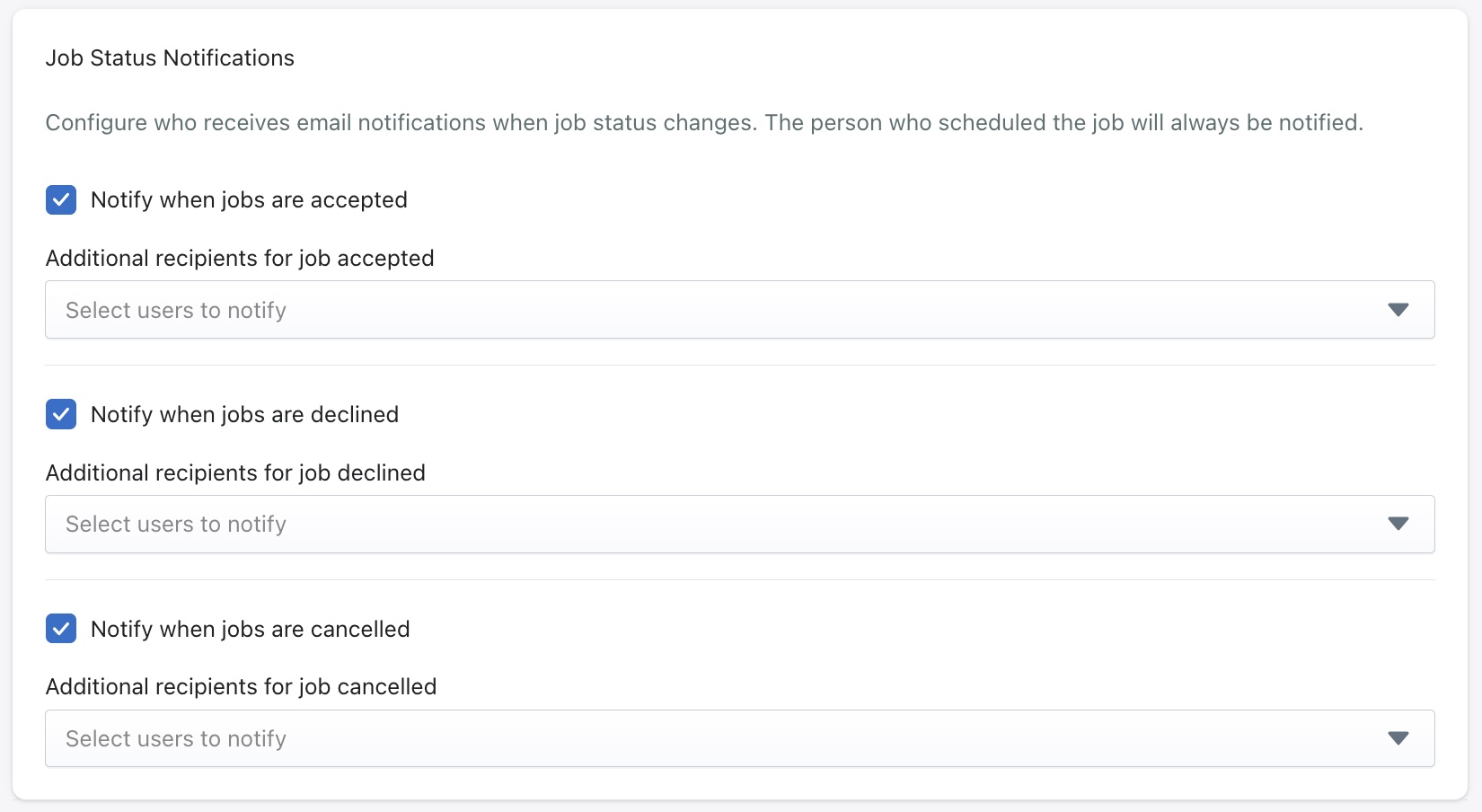
This section controls which internal team members are notified when a job changes status. The person who originally scheduled the job will always receive these notifications automatically.
Notify When Jobs Are Accepted
When enabled, a notification is sent as soon as an assessor accepts a job. Additional team members beyond the scheduler can be added as recipients using the Additional recipients for job accepted dropdown.
Notify When Jobs Are Declined
When enabled, a notification is sent if an assessor declines a job. This allows admins to act quickly and reassign the job. Additional recipients can be selected from the dropdown.
Notify When Jobs Are Cancelled
When enabled, a notification is sent any time a job is cancelled. Additional recipients can be configured to ensure the right team members are always kept in the loop.
Example: An operations manager might be added as an additional recipient for declined and cancelled jobs so they can monitor capacity and reassign work without delay.
Wuuii Network Participation
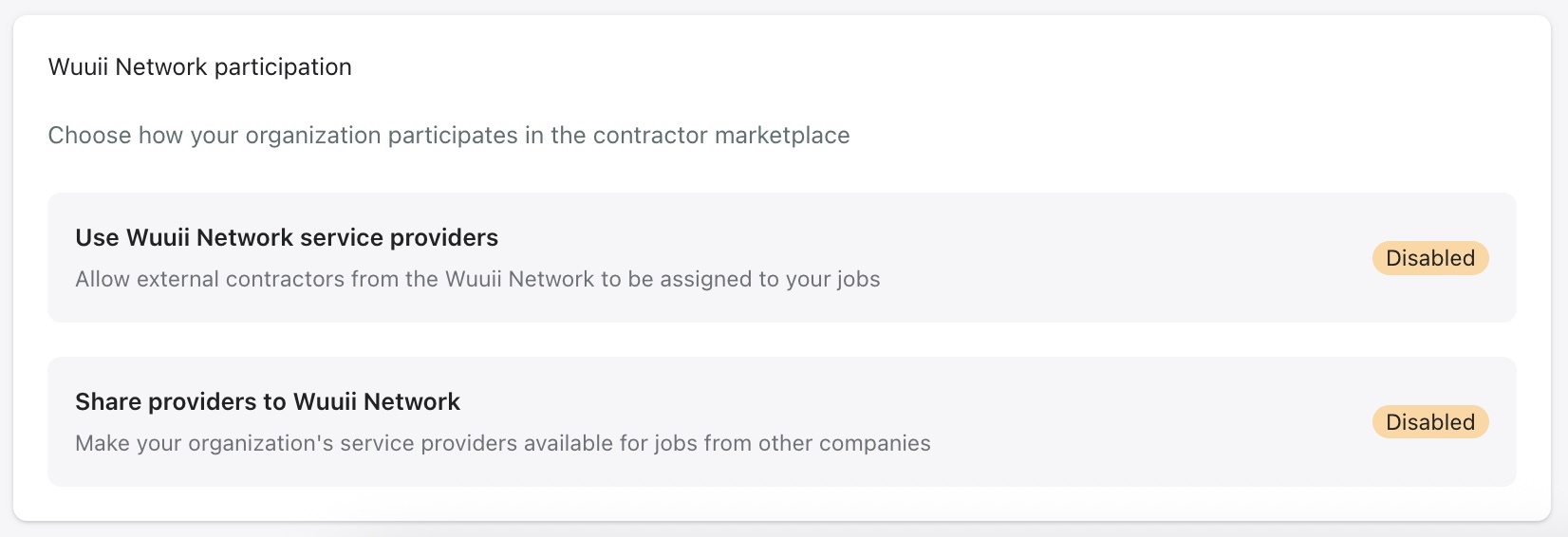
The Wuuii Network is a contractor marketplace that allows organizations to expand their workforce capacity by tapping into a wider pool of external service providers — or to share their own providers with other companies on the network.
Use Wuuii Network Service Providers
When enabled, external contractors from the Wuuii Network become available to be assigned to the organization's jobs. This is useful when internal capacity is limited and additional assessors are needed to meet demand.
Share Providers to Wuuii Network
When enabled, the organization's own service providers are made available to other companies on the Wuuii Network.
TIP
Both options are Disabled by default. Contact your Wuuii administrator to discuss enabling network participation for your organization.