Appearance
Changelog Report
In the Reports menu, click on the Changelog Report -
This report displays a complete audit trail of every action taken within the portal — from assessments being created and updated, to account settings being changed and records being deleted. It is an essential tool for administrators who need to monitor activity, investigate changes and maintain accountability across the organization.
Use the filters at the top of the page to narrow down the changelog to the specific actions or records needed.
Users can toggle between two tabs - Log and Activity to view a list view and calendar view of the logs respectively.
Log tab view is shown below. Click on Details on any record to view more details pertaining to the action.
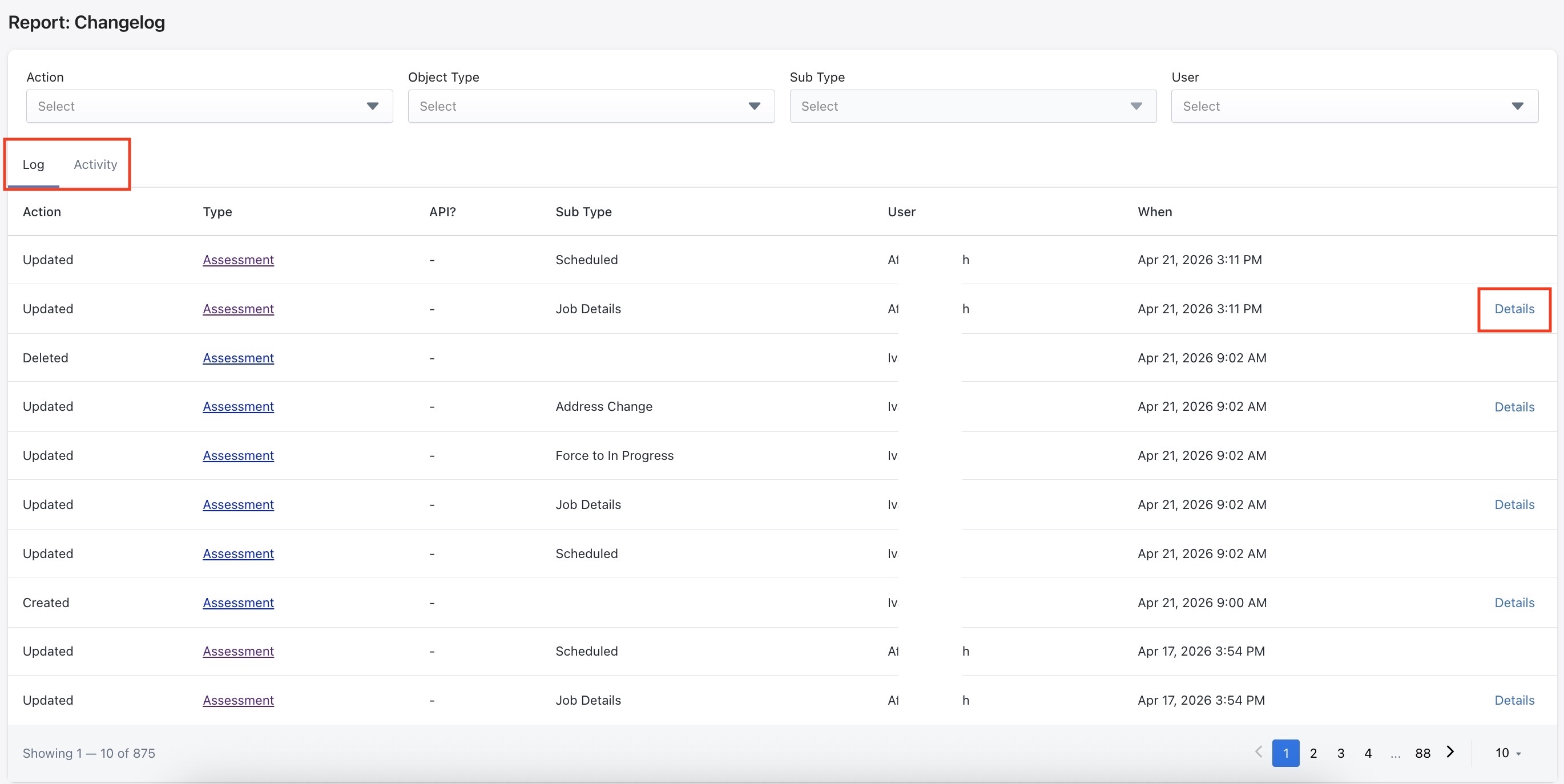
Lets take a look at some of the filters available in this report -
Action
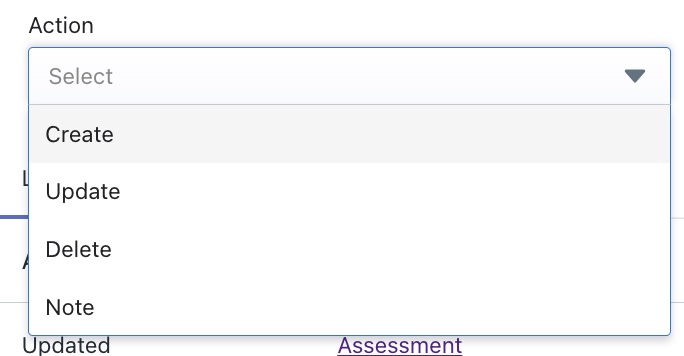
Filter by the type of action that was performed. Available options are:
- Create — Records that were newly created
- Update — Records that were modified or edited
- Delete — Records that were removed from the system
- Note — Notes that were added to a record
Example: Selecting Delete will show only records that have been deleted, making it easy to investigate removed assessments or contacts.
Object Type
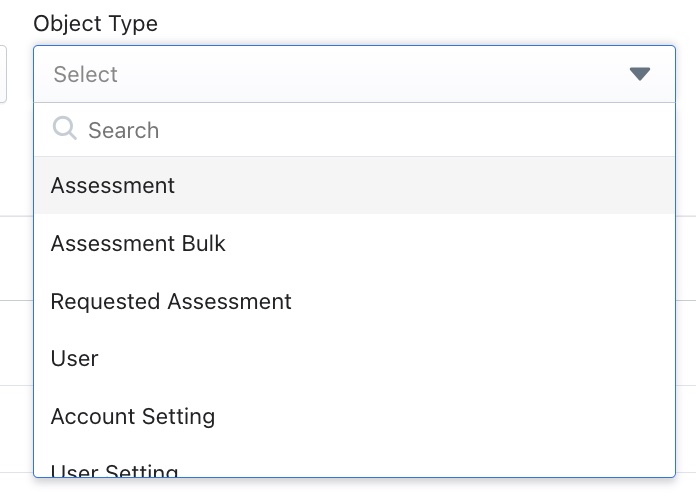
Filter by the type of record that was affected. Available object types include:
- Assessment
- Assessment Bulk
- Requested Assessment
- User — Changes made to user accounts
- Account Setting — Changes made to account settings
- User Setting — Changes made to individual user settings
Sub Type
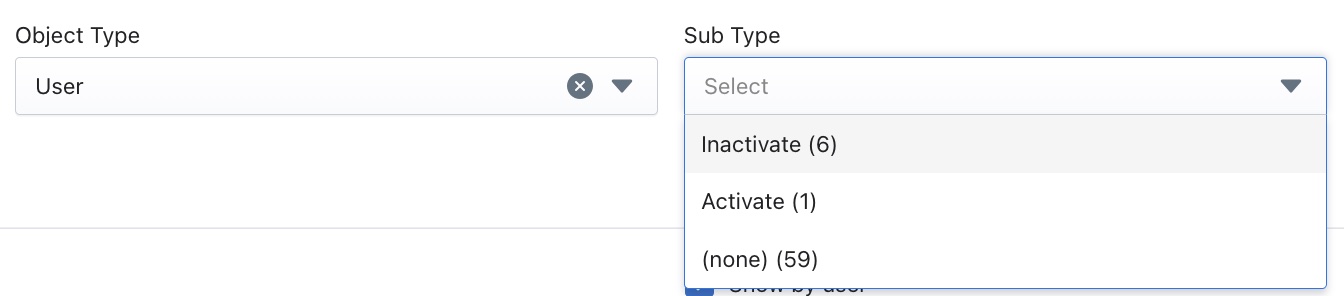
Further refines the filter within the selected object type. Sub Types represent specific categories of change within a record — for example Inactivate, Activate, None/ Other for Object type = User.
User
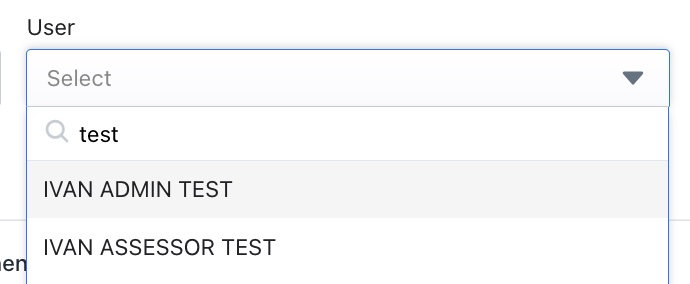
Filter the changelog by the specific user who performed the action. The User dropdown includes a search field — type a name to find a user quickly.
Example: Searching for a specific assessor's name will show every action that user has taken across the portal, useful for reviewing individual activity.
Activity tab
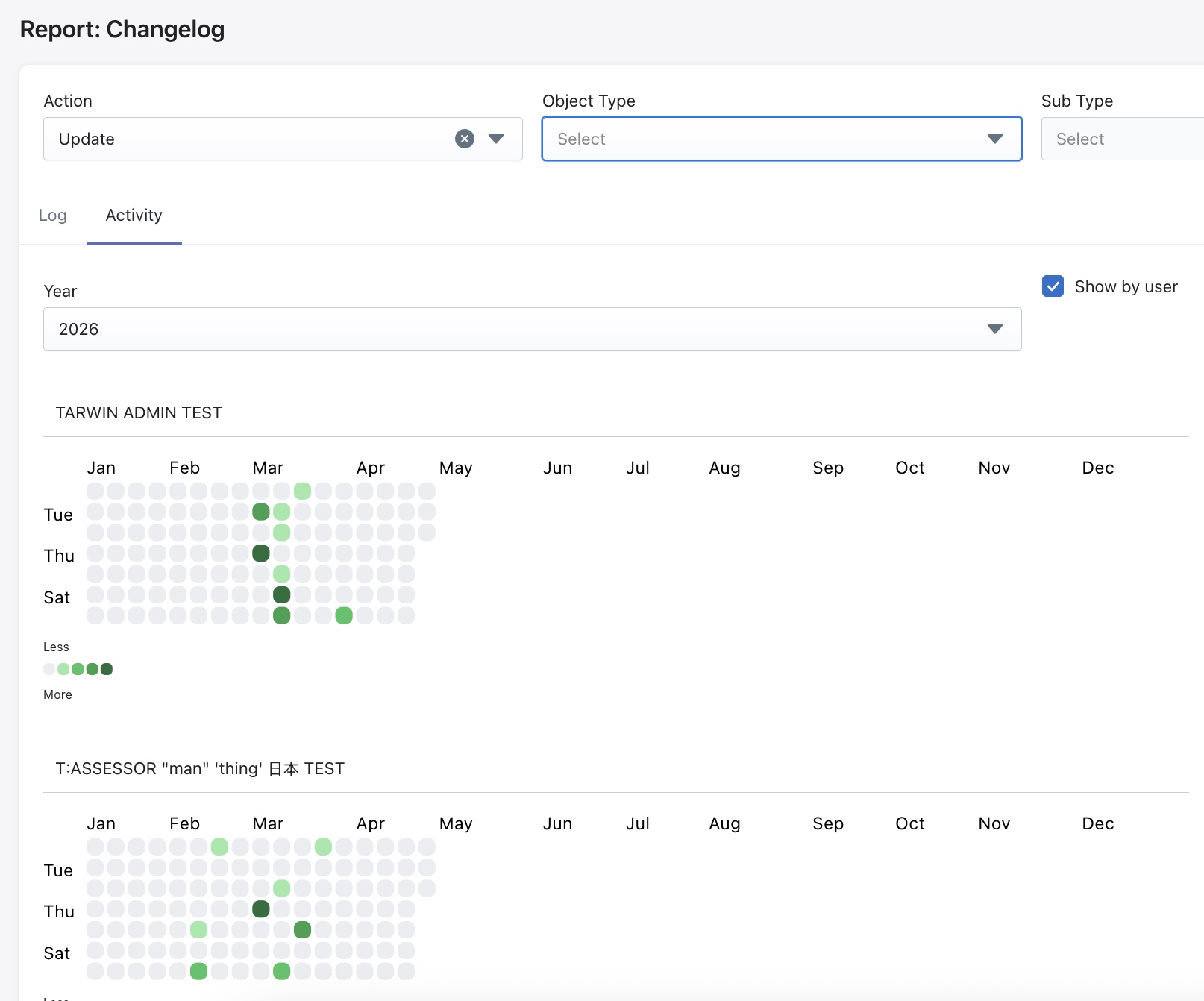
The Activity tab shows the changelog in a heatmap style calendar view that could be more helpful for some use cases.
There are two additional filters on this tab, one for year and a checkbox to display changes by individual users.
The color intensity of each dot indicates how much activity occurred:
- Light green — Low activity
- Medium green — Moderate activity
- Dark green — High activity
- Grey — No activity recorded