
Appearance
Schedule
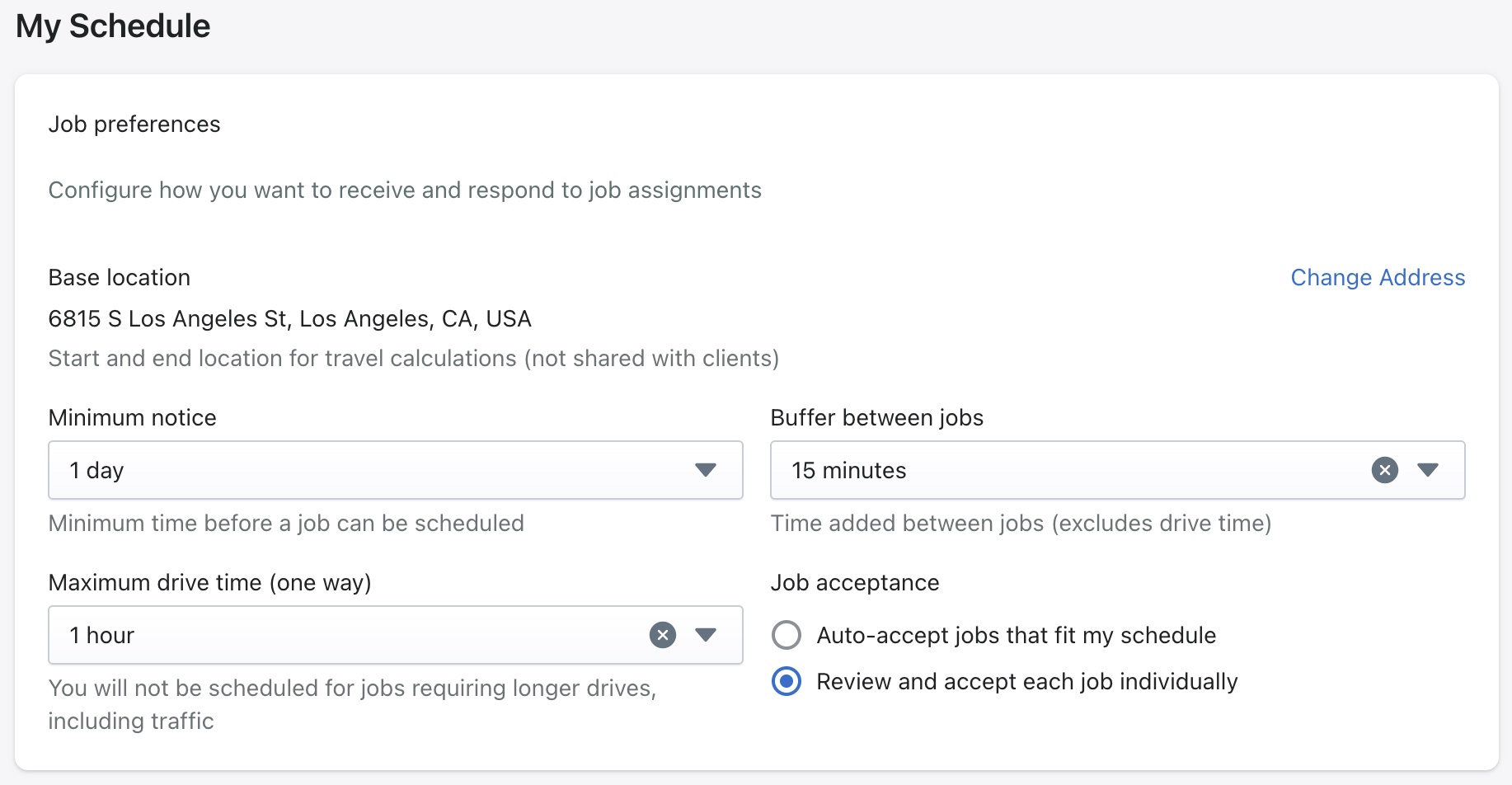
This view allows users to configure how they receive and respond to job assignments. Users can set their availability, location and preferences to ensure they are only offered jobs that meet their availability.
Job Preferences
Base Location
The base location is the address used as the start and end point for travel time calculations. For example this could be a home address or an office location. This is not visible to clients — it is used internally to estimate drive times and match users with nearby jobs.
To update the base location, click Change Address in the top right of the Job Preferences section.
Minimum Notice
The minimum amount of time required before a job can be scheduled. For example, if set to 1 day, the user will not be considered for jobs scheduled for the same day.
Use this setting to ensure there is always enough time to prepare for upcoming jobs.
Buffer Between Jobs
The amount of time added between consecutive jobs, not including drive time. For example, a buffer of 15 minutes means there will always be at least a 15-minute gap between one job finishing and the next one starting.
This is useful for wrapping up notes, traveling or taking a break between appointments.
Maximum Drive Time (One Way)
The furthest a user is willing to drive to a job, based on typical traffic conditions. If set to 1 hour, the user will not be considered for any jobs that require more than a one hour drive from the base location or previous job site, including traffic.
Job Acceptance
Choose how incoming job assignments are handled:
- Auto-accept jobs that fit my schedule — Jobs that fall within the user's availability and preferences will be automatically confirmed without any action required
- Review and accept each job individually — The user will be notified of each job offer and can choose to accept or decline manually. This is the recommended setting for users who prefer more control over their schedule
Time zone and Working hours
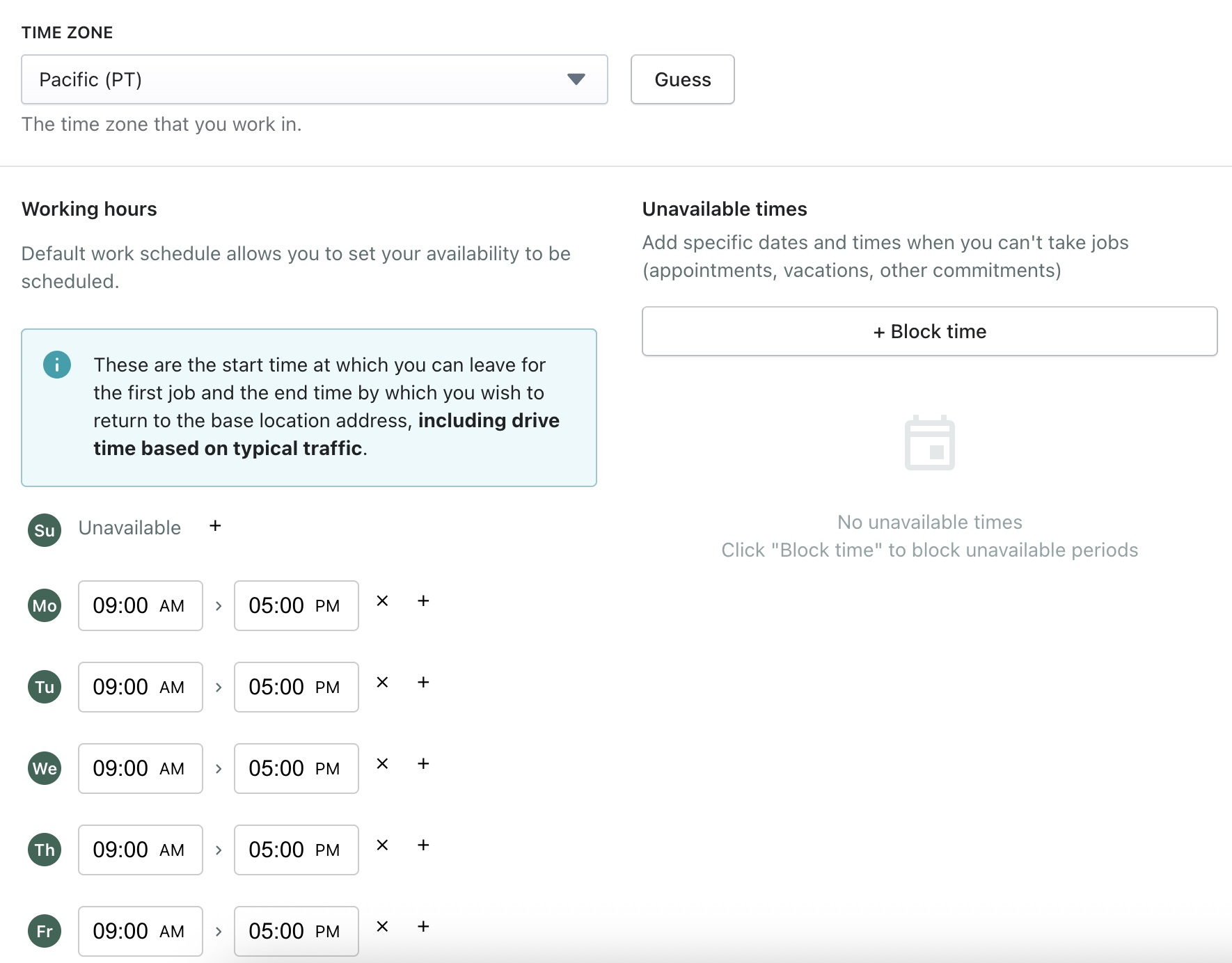
Select the time zone the user works in from the dropdown. This ensures all scheduled jobs and availability times are displayed correctly for their location.
Click Guess to have the system automatically detect the time zone based on device settings.
Working hours define the user's general weekly availability — the times they are able to leave for a job and the time by which they need to return to their base location.
Important
Working hours include drive time based on typical traffic. For example, if the end time is set to 5:00 PM, the system will account for the drive back to the base location when scheduling the last job of the day.
Setting Working Hours
Working hours can be configured for each day of the week individually:
- Click the + button next to a day to add availability for that day
- Click the × button to remove a time slot
- Days marked as Unavailable (like Sunday in the example) mean the user will not be shown on those days at all
Default hours are set based on the organization's working hours configured in the organizational settings.
Unavailable Times
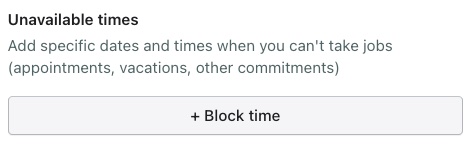
Use this section to block out specific dates or time periods when the user is not available to take jobs — such as appointments, holidays, or personal commitments.
To add a blocked period:
- Click + Block time
- Select the date(s) and time range to block
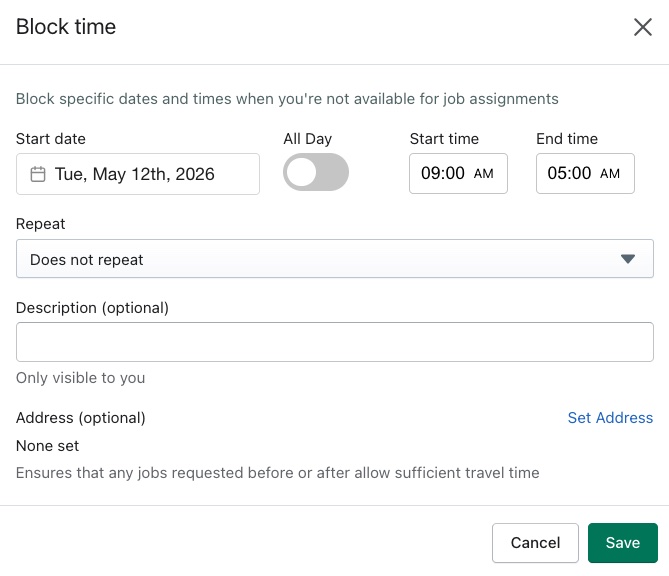
- Save the changes
Blocked times override regular working hours, so the user will not be shown during these periods even if they fall within normal availability.
Saving Changes
Make sure to save any updates before navigating away. Changes to the schedule will take effect for any jobs scheduled after the update is saved.