
Appearance
Single Sign-On (SSO)
Navigate to Settings > Single Sign-On
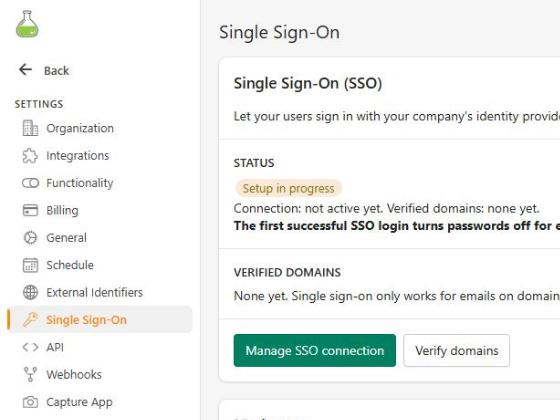
Single sign-on lets your users sign in to the portal with your company's identity provider, such as Microsoft Entra ID (formerly Azure AD), Okta or Google Workspace, instead of a separate password. Your IT team connects the identity provider through a guided setup page, without needing anything from the Wuuii team.
Only administrators can see this page.
Availability
Single sign-on is an enterprise feature. Contact the Wuuii team to turn it on for your organization. Until then, the page shows the status Not available.
How it works
- Users are still added by your administrators. Single sign-on only changes how users prove who they are. Someone who is not a user in your organization can't sign in, even if your identity provider lets them through. See Creating a new user.
- Only verified domains are trusted. Users can only sign in with single sign-on if their email is on a domain your organization has verified, for example
@acme.com. A domain is verified by adding a DNS record, so only someone who controls your company's domain can verify it. - Domains must match exactly. Verifying
acme.comcoversjane@acme.com, but notjane@field.acme.com. Verify each domain your users have. - Once it works, passwords are turned off. The first successful single sign-on login in your organization turns password logins off for everyone in it. From then on, all users sign in with single sign-on.
Status
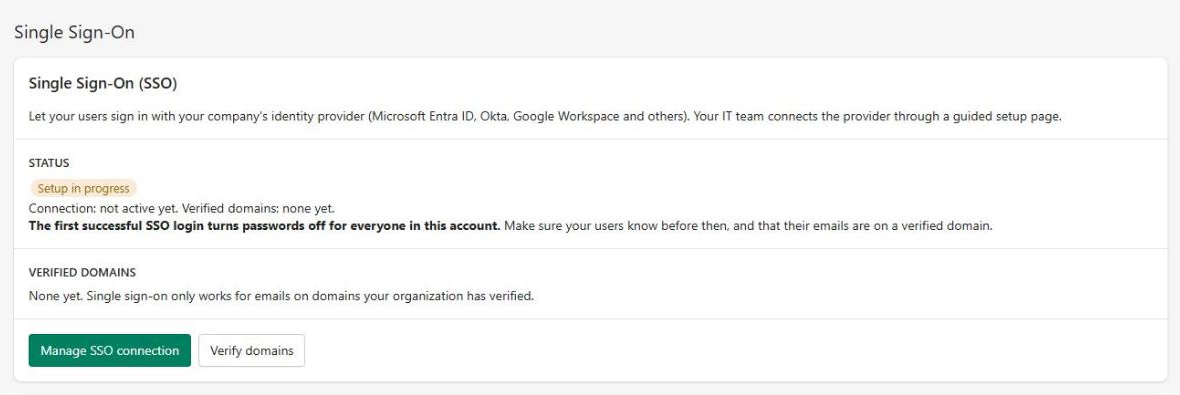
| Status | Description |
|---|---|
| Not available | Single sign-on is not turned on for your organization. Contact the Wuuii team. |
| Not set up | Your administrators can start the setup. |
| Setup in progress | A connection or a domain has been added, but nobody has signed in with single sign-on yet. Passwords still work. |
| Active, passwords off | Users sign in with single sign-on only. |
The page also shows whether the connection is active and which domains are verified.
Setting it up
The person setting it up, usually someone from your IT team, needs to be an administrator in the portal. They can be added as an administrator just for the setup. See Creating a new user.
1. Verify your domains
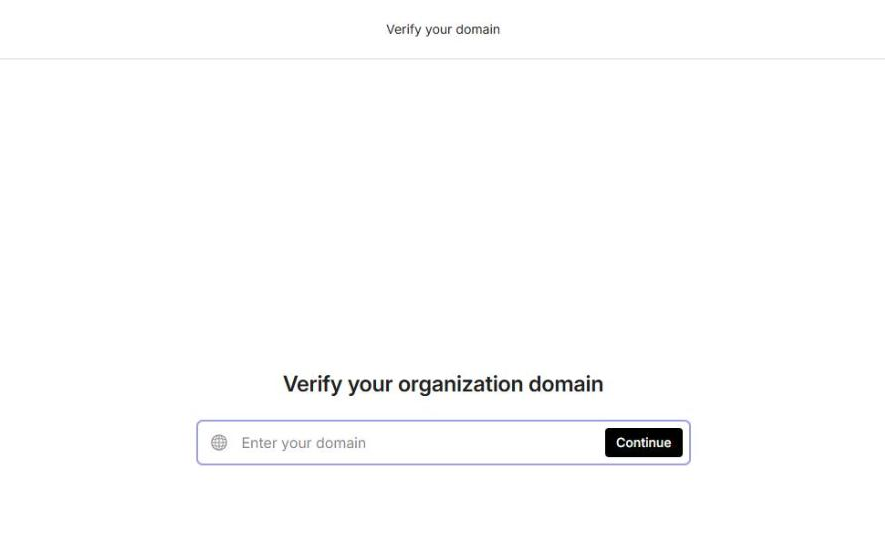
Click Verify domains. This opens a guided setup page, where you add each email domain your users have and a DNS record to prove you own it. When the domain shows as verified, the setup page takes you back to the portal.
TIP
DNS changes can take a few minutes, sometimes longer, to be picked up. You can come back to this step later; each click on Verify domains opens a new setup page.
2. Connect your identity provider
Click Set up SSO. The setup page walks you through connecting your identity provider, with instructions for each one (Microsoft Entra ID, Okta, Google Workspace and others).
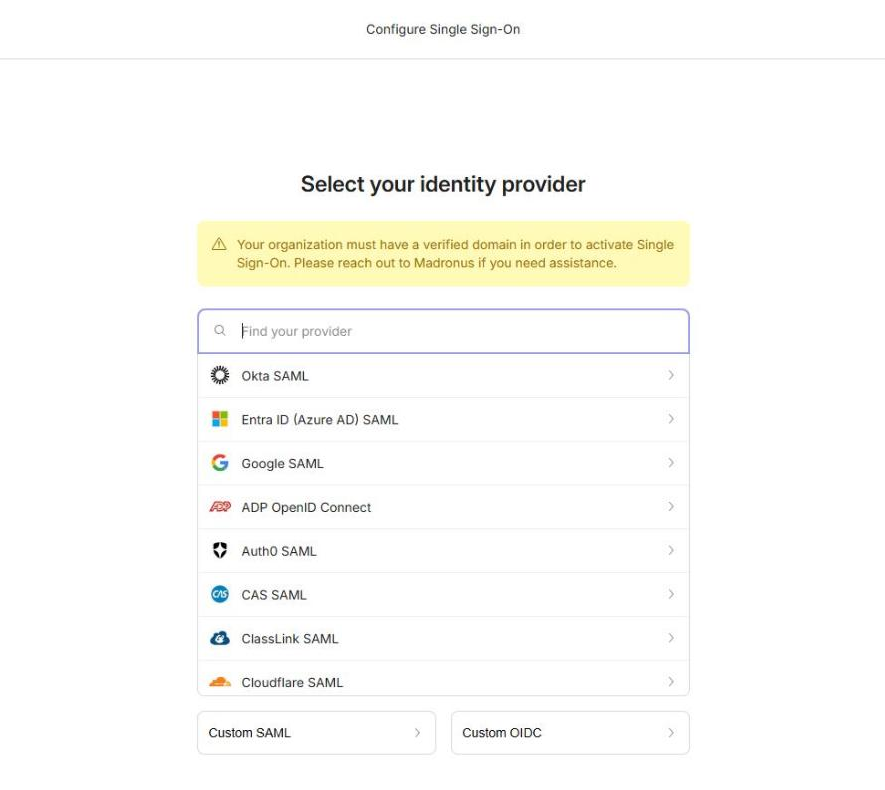
When it's done, the button changes to Manage SSO connection, which you can use to make changes later, such as uploading a new certificate.
TIP
The setup page link expires after a few minutes, so open it from the portal each time instead of saving or emailing the link.
3. Tell your users
Before anyone signs in with single sign-on, make sure that:
- every user's email in the portal is on a verified domain. Users on other domains, such as personal or contractor emails, won't be able to sign in once passwords are off;
- your users know they will sign in with your company's login from now on.
4. Sign in with single sign-on
On the login screen, click Sign in with SSO, enter your email and click Continue with SSO. You will be sent to your identity provider and back to the portal.
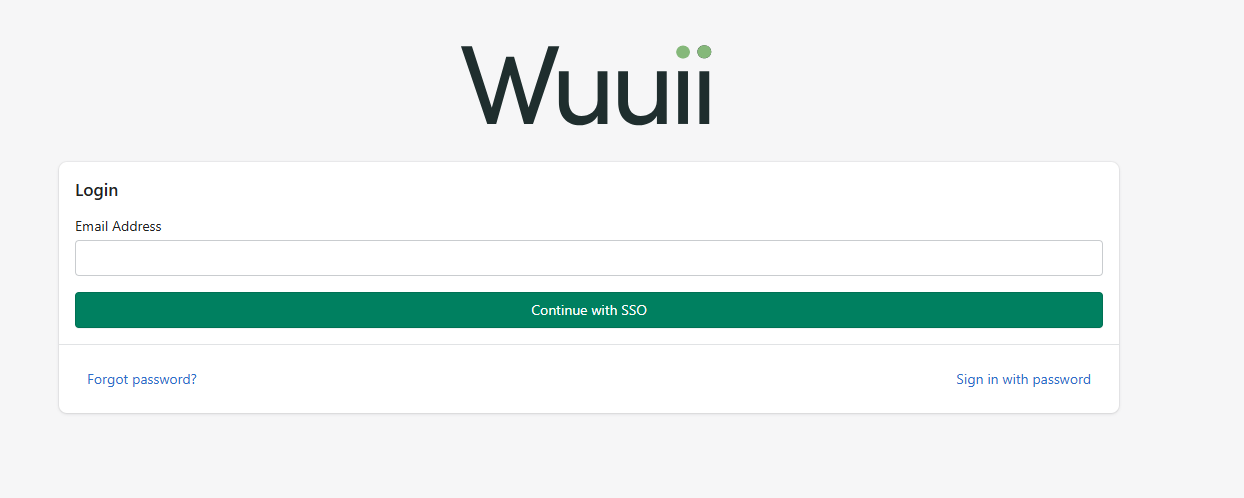
This first successful login turns passwords off for your organization, and the status changes to Active, passwords off. Users who are signed in with a password are signed out the next time their session refreshes.
Signing in
Once single sign-on is active, users can sign in in two ways:
- click Sign in with SSO on the login screen, enter their email and click Continue with SSO;
- or enter their email and click Login. The portal recognises that their organization uses single sign-on and sends them to their identity provider, so they don't need a password.
New users added to the portal get an email inviting them to sign in with single sign-on, instead of an email to set a password. The Forgot Password? link doesn't send emails to users of an organization that uses single sign-on.
Removing a user
Deactivating a user in your identity provider stops them signing in with single sign-on. You should still deactivate them in the portal as well. See Users.
Troubleshooting
| Message | What to do |
|---|---|
| Your email's domain is not verified for single sign-on | The user's email domain hasn't been verified yet. An administrator can verify it with Verify domains. |
| There is no user with your email in this organization | The user signed in with the identity provider but has not been added to the portal. An administrator can add them. |
| Your company's login did not complete | The identity provider returned an error. Try again; if it keeps happening, your IT team can check the connection with Manage SSO connection. |
| Your single sign-on session expired | The login took too long or was started in another tab or browser. Start again from the login screen. |
| Single sign-on is not available for this email | The email is not in an organization with an active single sign-on connection. Sign in with your password. |
If the connection stops working for everyone, for example because a certificate expired, contact the Wuuii team. They can turn single sign-on off for your organization so users can sign in with a password again. Every user then gets an email to set a password, since users invited while single sign-on was on never had one.